|
Codes and Names dialog |
Scroll |
Allows selecting code and name for insertion in the document title block or in the BOM item.


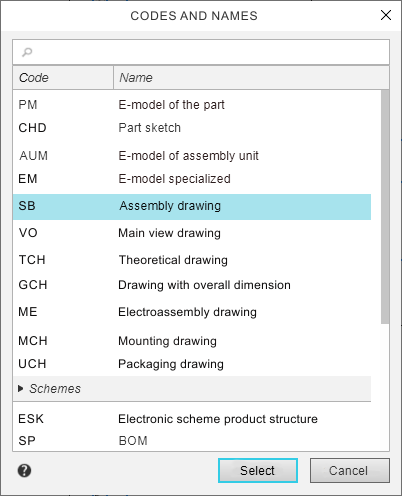
In this dialog, codes and names of documents are listed and grouped into sections. To expand the section, click its row.
You can select the required row by expanding the sections of the dialog or using the search.
The search field is located in the upper part of the dialog. The search is performed by codes, names, and section headings. To find an object, enter the desired characters in the search field, and then select the necessary entry from the appeared list of search results. In the dialog, the section containing the found item will be expanded, and the row for this item will be highlighted.
After specifying the desired row in the list, click the Select button; you can also double-click on the row with the required code and name. The selected code will be inserted into the Designation column, and the corresponding name will be inserted into the Name column. In this case:
•The selected code is inserted into the Code field in the document designation, replacing any previous contents of this field, if any.
•If the text in the Title column ends with one of the standard document titles, it is replaced with the selected title. This replacement also occurs if the document title in the column was followed by any number of periods or spaces. If the text in the Title column does not end with a standard document title, the selected title is simply added to the column's contents.
|
The content of the dialog Codes and Names is determined file of codes and names. If necessary, you can independently edit the existing file or create a new one. |

|
Automatic insertion of the code and name is made: •in the title block – in type cells product name and Document name, •in the BOM item – in the columns with the data type "string" associated with the stamp cell Product name or Document name. |

