|
Draw by template dialog box |
Scroll |
Allows you to select a template to create a drawing that contains an associative view of the current model.
Appears on the screen after calling the Create drawing from template  command.

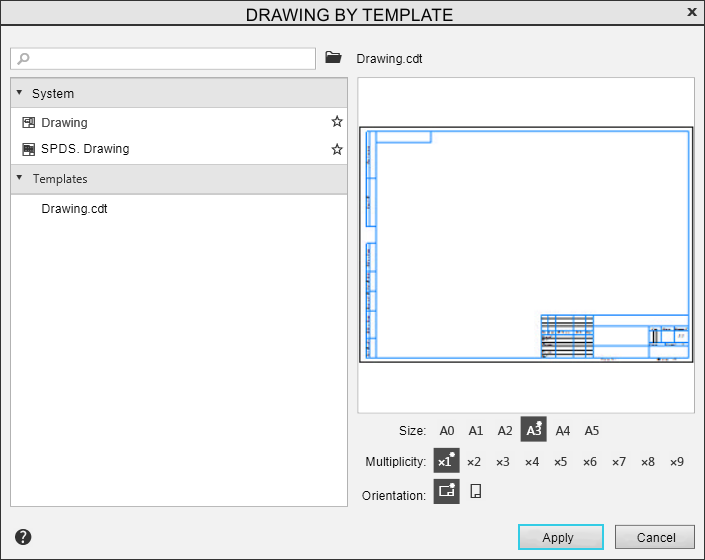
The left part of the dialog displays a list of drawing templates. The templates are grouped into sections. Sections can be opened and closed by clicking on the icons  and
and  on the lines with their names.
First section — System — contains templates for new drawings with specializations Drawing and SPDS.Drawing. When you select a template from this section, a drawing is created with a customization according to the template that is set for the drawing of the corresponding specialization in the setting dialog. If no template is specified, the drawing will have the default setting.
The last section in the list contains drawing templates supplied as part of KOMPAS-3D. By default, they are stored in the \Templates subfolder of the main system folder. The name of the section with templates corresponds to the folder name. You can specify the path to a different folder using the KOMPAS.ini file. If the folder that is specified as a template folder is not found in the specified path, or does not contain any drawing templates, the corresponding section is not displayed in the template list.
Custom template sections, if any, are placed between the first and last sections.
After clicking on the template name, a thumbnail image of the document is shown in the right part of the dialog box.
When creating a drawing from a single sheet document template, you can set the format, multiplicity and orientation of the sheet. This is done using the Format, Multiplicity and Orientation button groups located at the bottom of the right side of the dialog box. The button groups are displayed if the single sheet drawing template is highlighted in the list.
If a single sheet drawing template with non-standard sheet dimensions is highlighted in the list, then in the Format group there is a Custom format button  . When this option is selected, the buttons in the Orientation and Ratio groups are grayed out and cannot be selected.
The default value of each parameter is marked as «asterisk».
To change the format, multiplicity and orientation of the sheet, click the required button in the corresponding group. When changing the sheet parameters, the template itself does not change, nor does the document image in the right part of the dialog box. The set parameters will be applied only to the drawing being created.
When working with the list of templates in the dialog box, the following actions are available:
•adding new sections to the list of templates and removing them from the list,
•adding templates to favorites and deleting them from favorites,
To create a drawing based on the template selected in the list, click the Apply button.
The Cancel button allows you to close the dialog and cancel the drawing creation.
