|
Connecting a document to BOM item |
Scroll |
The list of documents connected to the item is displayed in the Documents section on the Parameter panel (see figure).
|
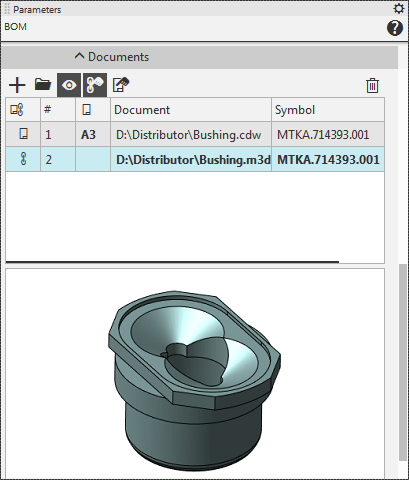
Documents connected to BOM Items
To connect a document to a BOM item, click the Add Document  button. Select the document file in the pop up dialog.
|
If the BOM item is a document, connect this document to the item (for example, assembly drawing, explanatory note, schema, etc.). If the BOM item is an assembly unit, attach the corresponding BOM to it. If the BOM item is a part, attach the working drawing of the part to it. |

If the document being added is the first one in the list, i.e., at the time the Add Document command is called If the list is empty, a prompt appears on the screen asking whether to retrieve data from the document properties. If the user agrees, the property values are automatically transferred from the linked document to the corresponding fields in the BOM object. In general, the specification table displays property values Format, Designation and Name. The Material and Weight are entered in additional columns and are not displayed in the specification table. However, if the units of mass used in the BOM differ from those used in the drawing or model, the mass value is recalculated.
|
The relationship between BOM rows and properties is configured in the BOM style. Learn more about configuring BOM rows... When configuring a section in the specification style, you can disable data retrieval from the document. In this case, the prompt to use data from properties does not appear, and the button |

 in the section
 Above the list of documents linked to the BOM object are buttons that allow you to perform various actions on the documents. The buttons are described in the table.
Buttons in the Documents section
Name |
Description |
|
|
Add document |
Allows you to add a document to the list of documents connected to the BOM item. After you click the button, a dialog for selecting a document to be connected appears on the screen. |
|
Edit in window |
Opens the document selected in the list in a separate tab in the KOMPAS-3D window or activates the document tab if it was already opened. You can make any changes with the document. |
|
Enable viewing of documents |
Controls the display of a thumbnail of the document selected in the list within the Documents section. |
|
and Get format from a document |
The button After you click the button, the content of the corresponding cell or cells of the item in the BOM table is changed and the document is marked in the Property/Format source column with an icon:
As long as the button remains pressed, the attachment between the BOM item and the document is maintained, i.e. changes of property values are transferred from the document to the item. You can disable the link by releasing the button. At the same time, the icon of the document in the Property/Format source column disappears. The current content of the BOM item cells does not change. In the case of manual text editing in the cells of the specification object, the buttons are automatically pressed: •button •button By default, both the format and other properties are inherited from the first document linked to the BOM object. If necessary, adjust this setting after linking all documents. In some cases, when a document is linked to a BOM object, the format may be automatically inherited from it. |
|
|
|
|
|
|
|
Remove |
Allows you to delete the selected document from the list, i.e. to disconnect it from the specification object. The document file remains on the disk in the same folder. The current contents of the cells of the specification object do not change. |


|
If the specification object is imported from a linked document, only the following buttons are available for it in the Documents section: Edit in window |
Procedure for automatically enabling format transfer from a linked document
•If none of the documents linked to the specification object pass their format to it, then format transfer and change tracking are automatically enabled for the linked document (i.e., the Get Format from Document  button is pressed and held down).
•If any of the documents connected to the BOM object transfer their format to it, then:
•In the case when the current format is extracted from the BOM (*.spw):
While connecting up to the new documents, settings remain unchanged.
•In the case when the current format is transferred from a drawing (*.cdw):
Format transfer from the connected document and tracking its changes are enabled if the connected document is a BOM.
•If the current format is transferred from another document:
Format transfer from the linked document and tracking its changes is enabled if the linked document is a drawing or a BOM.
