|
Thickening |
Scroll |
To add a layer of material, use the Thicken command  .
.

Step-by-step instructions
1.Select the result of the operation by clicking the corresponding button in the Result group in the Main section of the Parameter Panel.
 Merging — the created element is merged with the existing one (i. e., it is attached to the specified face or surface).
 New Solid — the created element is an independent solid.
More details on selecting an operation result...
For the Merging option, you can customize the operation application area in the Application Area section. More details on the application area...
2.Select the faces of the solid/surface to which you want to add material.
A single selection can include a face or a group of faces that meet a specific condition. Use the Quick Access Toolbar to set the condition.
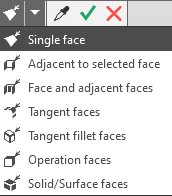
|
If you want to apply thickness to all faces of a solid or surface, you can select the solid or surface itself rather than the individual faces. Features of selecting solids and surfaces... |

The selected objects are highlighted in the graphics area, and their names are displayed in the Edges field in the Main section of the Parameters Panel.
A placeholder for the new layer appears in the graphics area.
3.Set the layer thickness using the Thickness group of elements on the Parameter Panel. The Symmetric Thickness toggle switch controls the method of adding a layer and its thickness. When it is set to I (enabled), you can set the total layer thickness, and when it is set to 0 (disabled), thickness is indicated for each side of the layer relative to the face. Thickness parameters and the order of their setting are similar to those described for a thin-walled element.
4.If necessary, set the object name and the properties of its surface display using the controls located in the Properties section. More details on managing the color and optical properties...
5.To complete the operation, click Create Object button  .
.
After confirming that the operation has been completed, a layer of material appears in the graphic area, and a corresponding icon appears in the Design Tree.
6.To complete operation of the command, click Finish  .
.
Tips
•The thickness can be set in the graphic area using defining points.
•To set the linear parameters, you can use the commands of the geometrical calculator.
•You can assign tolerances to the values of the operation parameters expressed in linear values. To do this, run the Tolerance command located in the menu of the required parameter, or click the  icon displayed in the parameter field (the icon is displayed if a tolerance is assigned to the parameter value). More details on assigning tolerances...
|
Thickening is not possible in the following cases: •the added layer of material is a solid with a broken topology, that is, with breaks or surface parts degenerate into a point or a line; •the surface of the added layer self-intersects; •when specifying several faces, the line of intersection of their equidistant surfaces cannot be unambiguously determined. |

See Also
