|
Tabular attribute editing dialog |
Scroll |
Allows you to specify the contents of the cells in an attribute of the table type, with a fixed or variable number of rows.
The dialog box appears on the screen after you click the Copy  button or Edit
  of the dialog Attributes.

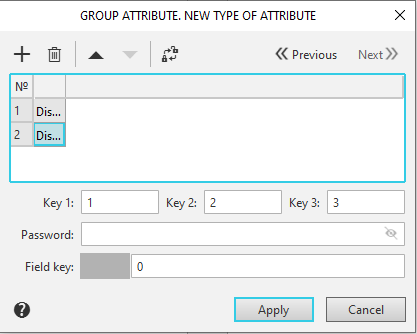
Description of Controls
The element |
Description |
|
|
Add |
To add a new row to the table, click this button. The button appears above the table if the attribute type is a table with a variable number of rows. |
|
Delete |
To delete a row in a table, place the cursor on it and click this button. The button appears above the table if the attribute type is a table with a variable number of rows. |
|
Move up/down |
To reorder a row, select it and click this button. Then place the cursor on the row where you want to move the selected row, and click the left mouse button. The Move Up/Down buttons are available if the attribute type is a table with a variable number of rows. |
|
Disable/allow column editing |
Click this button to disable or enable editing of values in a table attribute column. When you hover over the button, a tooltip appears showing the name of the current command — Disable column editing or Allow column editing. When editing is disabled, a message appears in the column Disabled Column. |
|
Next Previous |
You can sequentially move from one object attribute to another using the arrow buttons. These buttons are available, firstly, when working with attributes of documents or objects of graphic documents and document-models, and secondly, if the selected object has more than one attribute. |
Table for entering or editing attribute content |
The table contains columns whose names and contents correspond to those specified in the attribute structure description dialog. If the table is of arbitrary length, you can add rows using the Add button. |
|
Key1 Key2 Key3 |
Fields for entering keys. The key values determine in which section of the BOM this attribute will be available as a template for filling in the text (the attribute must be located in the Spc.lat file). Learn more... |
|
Password |
Click this button to set a password for accessing the attribute (for example, to prevent unauthorized changes). |
|
Field Key |
In this field, you can enter the key value for the specified table attribute field. The attribute field name is displayed on the left. This allows you, for example, to set the attribute field key to a value different from the default value specified for that attribute type. |


After entering values in the table attribute cells, click the Apply button. To exit the dialog without changing the attribute's contents, click the Cancel button.
