|
Dialog of parameters for reading files in STEP AP203/STEP AP214/STEP AP242 format |
Scroll |
The dialog appears on the screen after invoking the Open with Parameters command from the Open button menu when importing a model from a format file. STEP AP203/STEP AP214/STEP AP242.
The dialog allows you to configure the import options.

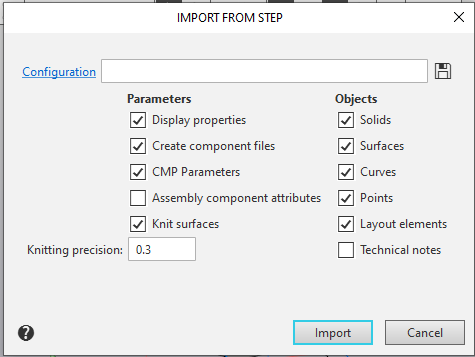
Description of Controls
The element |
Description |
|
Configuration |
The field is used to load the configuration file, which contains the import parameters. To select the desired configuration, click on the field name and specify the configuration file in the dialog that opens. The full name of the selected file will appear in the field, and the settings in the dialog will change to match those recorded in the configuration file. The selected configuration applies to the current and all subsequent file import operations in this format. More about import configuration... If you want to stop using the configuration, click the Default |
|
|
Save to file |
The button allows you to write the current settings to the configuration file. After clicking it, you need to specify the name of the configuration file in the file saving dialog. The configuration file for importing from the STEP format (all variants) has the sikf extension. The saved file is automatically selected as the configuration to use — its name appears in the Configuration field. |
Group Parameters |
||
Display properties |
This option is used to enable/disable the import of colors of model objects |
|
Create component files |
The state of the option affects the process of creating components when importing an assembly model: •If the option is enabled, the components are written to separate files and are independent models, •If the option is disabled, the components are stored inside the assembly as local models. |
|
CMP Parameters |
This option is used to enable/disable the import of CMP parameters such as density and mass. |
|
Assembly component attributes |
This option allows you to specify where the data about the assembly components should be obtained from: •If this option is enabled, the values of the component insertion attributes recorded in the assembly are used., •if this option is disabled, the component data is taken from the sources of these components. |
|
Knit surfaces |
This option is used to knit surfaces. If this setting is enabled, the system will try to merge the imported surfaces. As a result, you can get a larger surface or solid (if the source surface is closed). If this setting is disabled, the knitting won’t be applied, and the imported surfaces would be similar to the original ones. Please note that the Knit surfaces setting only affects surfaces and do not affect bodies. |
|
Knitting Precision |
Field to enter the value of the maximum distance between the edges of knitted surfaces. The range of valid values is 0–1000 mm. The field is available when the option is enabled Knit surfaces. |
|
Group Objects |
This group of options is used to manage the import of model objects. When this option is enabled, objects of the corresponding type are imported into the model. The dialog contains the following options: •Solids, •Surfaces, •Curves, •Points, •Layout elements — are imported sizes, designations, labels, and tables (when importing from format STEP AP214/STEP AP242 files), •Technical notes — text objects are imported (when importing from format STEP AP214/STEP AP242). |
|


After completing the settings, click Import. The import of the model with the specified parameters will start.
If you want to cancel the import, close the dialog by clicking Cancel.
