|
Areas and controls of the Product BOM panel |
Scroll |
Product BOM panel In expanded view is shown in the picture below. The following table contains a description of the areas and controls of the Product BOM panel.
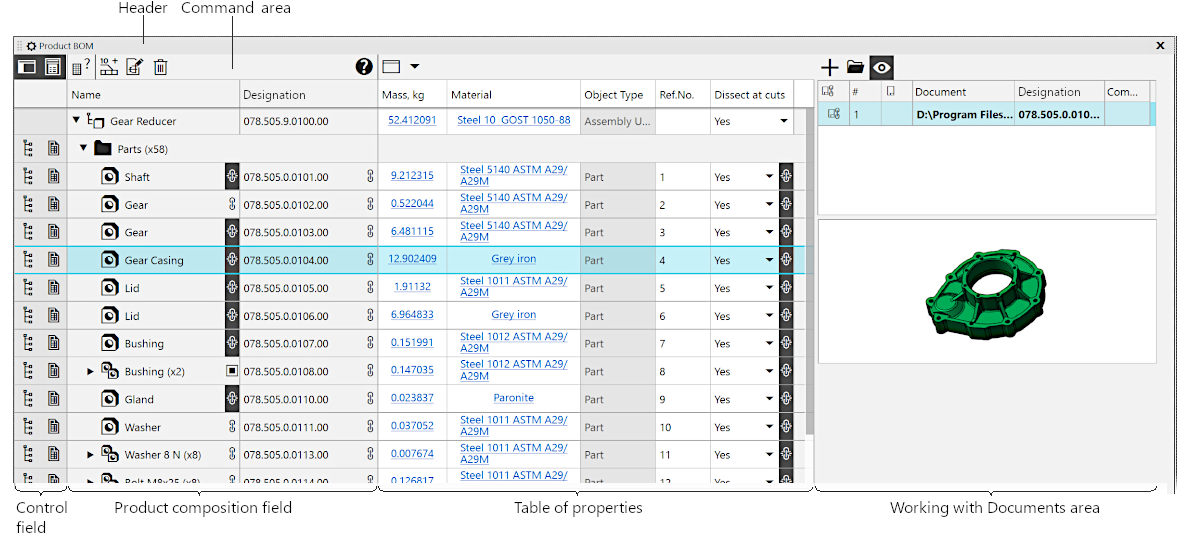
Areas of the Product BOM panel
Region |
Description |
|
Header |
Contains the button |
|
The button •Full width from the bottom (available in the menu if the Product BOM Panel is expanded) — places the Product BOM Panel at the bottom of the KOMPAS-3D window so that it occupies the full width of the window. The panel height will not change. •Presence in the composition (present in the menu when working with the assembly) — toggles the display of the first column in the Product BOM Panel. •Availability in the description (present in the menu when working with the assembly) — enables/disables display of the second column of the Product BOM Panel. |
||
The button |
||
Command scope |
Contains buttons for executing the following commands: |
|
|
Unfold — toggles between the compact view and unfolded view of the Product BOM. |
|
|
Version mode — enables/disables the mode for working with model versions. Available if the Panel has unfolded view, the model is an assembly, and contains versions. More... |
|
|
Documents — toggles the display in the Product BOM panel of the area for working with documents. Details... |
|
|
Select BOM style — opens a dialog box where you can select a BOM style that determines how components are divided into sections and sorted within them. More... |
|
|
Add to Product (only when working with an assembly) — creates a non-visual component. Details... |
|
|
Link to position/component (only when working with an assembly) — initiates a process where the selected constituent part can be linked to a reference number, component, or solid. Details... |
|
|
Delete — deletes the selected component from the list. Details... |
|
|
Help – invokes help on the Product BOM panel. |
|
|
Column settings (only when the Product BOM Panel is expanded) — opens a list where you can select properties to display on the Product BOM Panel. Details... |
|
|
Recalculate CMP — initiates the calculation of the product's CMP. The button is present on the panel if the mass of the product is not relevant. Cell(s) with an irrelevant mass value have a pink background in the table. After CMP recalculation, the values in them change, and the background becomes white. |
|
Control field |
Control field — first two columns of the Product BOM panel. They contain icons for managing the attributes of the constituent parts, such as Included in the product and Included in the current description of the BOM. The display of these columns can be enabled/disabled using the When working with a part, only the first of the two columns is available in the Product BOM panel. |
|
Product BOM field |
Contains columns Name and Designation. In the Name column, the names of the product and its constituents are displayed. The constituent parts are split into sections. Their names are also displayed in the column Name. |
|
|
It is impossible to disable the display of columns Name and Designation on the BOM Composition Panel or to swap these columns |
|
Table of properties |
Displays the properties of the product and its constituent parts. The name of the property is displayed in the column heading, the first cell displays the property value for the product, while the remaining cells display the property values for the constituent parts. To select the properties to be displayed in the properties table use the Column Settings button |
|
Working with Documents area |
An area has been added to the Product BOM Toolbar to work with documents attached to a product and its constituents. It contains a list of documents and buttons to manage documents above it. To display the area for working with documents you need to press the Documents |


Controls in the cells
Icons appear on the right side of the cells with certain properties. See the table for description of their meaning and use.
Controls of the Product BOM panel cells
Display Icon |
Value and use |
|
|
A product constituent part property retains its link to the source file of that constituent part. The changed property value will be transferred from the source file to the corresponding constituent. Clicking on the icon will break the link between the property and the source, and the icon will be changed to |
|
|
A product constituent part property has no link to the source file of that constituent part. If you change the property value in the source file, the property of the component will remain the same. Clicking on the icon will restore the link between the property and the source, and the icon will be changed to Note that manually changing the value to one matching the source does not restore the link. |
|
|
It is displayed for a group of identical constituent parts – in the cell of the property that is linked with the source for certain constituent parts or not linked with the source for other constituent parts. Clicking on the icon restores the link of the property to the source for the constituent parts that do not have this link, and the icon changes to |
|
|
The icons |
|
|
The value of the property can be selected from the File of user menus (But in addition, arbitrary text may be entered manually.) Clicking on the icon opens the relevant item in the user menu. The row selected from it becomes the property value. |
|
|
The icon |


See Also
