|
Dialog for setting up writing parameters to PDF |
Scroll |
This dialog appears on the screen after pressing the button. Parameters when exporting a file to PDF.
In the dialog, you can configure the settings for writing a multi-sheet drawing to PDF.

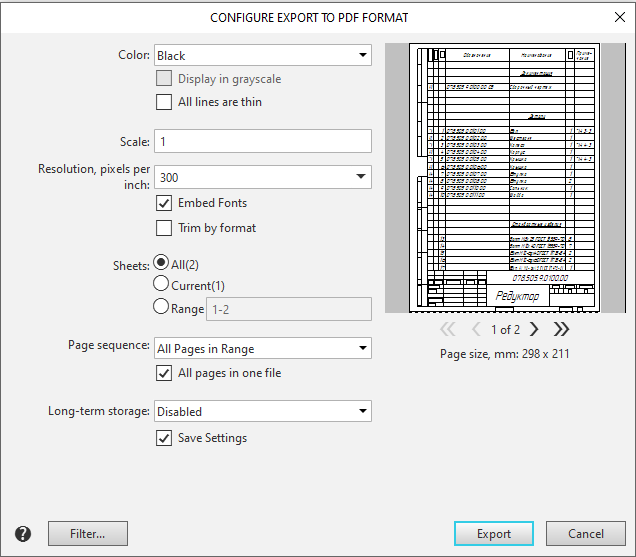
Description of Controls
Element |
Description |
||
Color |
A list from which you can select an image color. Learn more about the available options... |
||
Display in grayscale |
An option that allows you to record color tones as shades of gray. Not available when Black is selected as the color option. |
||
All lines are thin |
This option allows to save all lines with the thickness set for printing thin lines in the dialog for setting up system lines. The default the value (thickness on paper) is 0.18 mm. If this option is disabled, the lines are recorded with individual thicknesses for printing. Line thickness on paper is a line style option. For system styles, it is set in the system lines settings dialog, and for user styles when setting them. The line style also contains the “thickness on screen” parameter. Its value does not affect the export result. The state of the option All lines Are Thin does not affect the thickness of the lines of the font. |
||
Scale |
The field to set the image scale. |
||
Resolution, dots per inch |
Drop-down list allows you to enter or select the image resolution. |
||
Embed fonts |
The option allows to obtain the same text view in a PDF file as in the original document. |
||
Crop by format |
The option, the inclusion of which means that each page of the PDF document will be limited to the size of the format specified for the corresponding sheet in the drawing. In the created file will not be written those parts of the images that extend beyond the boundaries of the specified formats. When the option is disabled, page sizes are determined by the dimensional rectangles of the objects located on them. |
||
Controls for the output of multi-sheet documents |
These are displayed when saving drawings, BOMs, and text documents that contain multiple sheets. |
||
|
Pages |
A group of controls that allows you to select pages to record. Contains the following options: •All. If this option is enabled, all pages of the document will be saved.. •Current. If this option is enabled, only the current page of the document—the one displayed in the view window—will be saved. •Range. If this option is enabled, the specified pages will be saved. You can enter page numbers and/or ranges of page numbers in the field, for example, «1, 3-5». |
|
|
Page sequence |
This list appears in the dialog box when saving multi-page specifications and text documents. Allows you to specify which pages in the range should be saved: all, only even, or only odd. |
|
|
All pages in one file |
This option allows you to save all the sheets in a document into a single file. If this option is disabled, each sheet is saved to a separate file. The file names for the saved sheets are generated as follows: sheet numbers are automatically appended to the name specified when saving the document. |
|
Long-term storage |
A list from which you can select a format for long-term storage of a PDF document. |
||
Save Settings |
The option, allowing for saving preset settings of writing to the PDF format for further use. |
||
Filter |
The button allows to set up Print Filters. After invoking the command, a dialog Print Filter Settings will appear on the screen. . In the created file, only those objects of a KOMPAS document whose printing is enabled will be present.. |
||
Preview window |
The window is used to view the page selected for recording. If the document has multiple pages, the number of pages and buttons for navigating between them are displayed below the view window. |
||
Once you have finished configuring the settings, click the Export button to start recording. To cancel the recording, click the Cancel button.
