|
Special document print dialog |
Scroll |
Allows you to set the desired special print options for the current document and print it.
This dialog appears on the screen after calling the File — Special Print...  command.

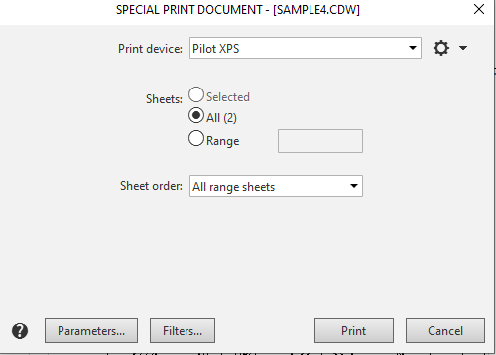
Description of Controls
Name |
Description |
||
Print device |
The field is used to display the name of the device selected for printing. |
||
|
Settings... |
The button allows you to select a print device and adjust its settings. After you click the button, the standard dialog for selecting and setting the print device appears on the screen. The commands in the Settings... button menu allow you to save or load configuration of print device. To call the menu, click on the triangle to the right of the button. |
|
Sheets |
A group of controls that allows you to select sheets for printing. |
||
|
|
Selected |
This option allows you to print a selected portion of the document—an area containing selected objects (in a graphic document or model) or a selected text fragment (in a text document). If nothing was selected in the document before calling the special print command, or if a specification is being printed, the Selected option is not available. |
|
|
All |
This option allows you to print all pages of the document. |
|
|
Range |
This option is available in the dialog box when printing multi-page documents. It allows you to print selected pages of the document. To select pages, enter their numbers in the field. You can enter the numbers of the pages to be printed, separated by commas, and/or specify page ranges, for example: 1, 3, 6–13, 17, 22–25. If the number entered exceeds the number of pages in the document, a warning appears. |
Sequence |
This list is available in the dialog box when printing multi-page documents. Allows you to specify which pages in the range you want to print: all pages in the range, odd-numbered pages, or even-numbered pages. |
||
Parameters... |
This button opens the output settings dialog. In this dialog, you can set the output color and the precision of model rendering, enable or disable thin lines, and enable or disable an alternative method for rendering fills and hatches. |
||
Filters... |
This button opens the dialog box for setting print filters for document objects. In this dialog box, you can enable or disable the printing of graphic document objects based on their type. |
||

|
If any items were selected in the special drawing or in the text document prior to running the "Print" dialog box, the print filter is automatically disabled (using this filter you can select individual sheet objects to be printed, e. g. borders, title block, etc.). You can enable the filter if needed. In this case, if you print a text document, the entire sheets elements will be printed, and if you print a drawing, only the parts of the elements inside the selection frame will be printed. |

After setting all parameters, click the Print button to start outputting a document. Click Cancel to close the dialog box without printing the document.
