|
Additional features when building chamfers and fillets |
Scroll |
There are a number of features that can be used when building chamfers and fillets on any available objects, with the exception of contours, polygons and broken lines.
Parts of the trimmed objects remaining after creation of chamfer/fillet can be automatically deleted. To remove them, enable the options Trim element1 and/or Trim element2 on the Parameter Panel.
|
|
a) |
b) |
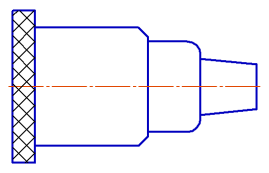
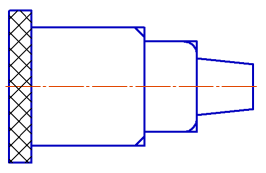
Construction of chamfering/fillet
a) with trimming of elements, b) without trimming of elements
Creating a conditional intersection of trimmed objects
On trimmed objects a conditional intersection can be constructed. This means that when building a chamfer/fillet, objects will be continued with thin lines to the point of their intersection. To build an intersection, enable the option Conditional intersection on the Parameter Panel.
|
|
a) |
b) |
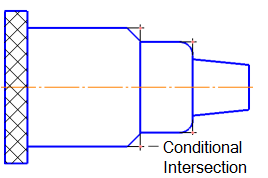
Construction of chamfering/fillet
a) when the conditional intersection is on, b) when off
Conditional intersection is created if the construction of chamfer/fillet occurs with the trimming of at least one of these objects.
To build a conditional intersection, use default values of the parameters which are specified in the Document setup dialog box.
Conditional intersection can also be constructed separately, using the Conditional intersection command.
By default, the created conditional intersection is not related to objects specified during execution of the command, and can be edited separately.
|
While working in parametric mode a conditional intersection is created associated with the object. |

