|
File syntax |
Scroll |
The file of user menus allows to create a hierarchical menu structure. It consists of separate lines. A line can describe a section or a menu command. Lines can be supplied with comments. Comments are not displayed on the screen not inserted into the document. A comment is a line located after the ‘ (apostrophe) character. For example, in the line MENU 2 'Parameter the comment is Surface finish parameter.
Each file section has the heading MENU num, where num – the section number.
A file section should start with the key word BEGIN and end with the word END. Lines which are between these words (inside the section) will be shown in the user menu.
Inside the section, menu bars (separate commands) and submenus (names of groups of commands) nested into the section are listed, which, in turn, may also contain menu bars and submenus.
A menu bar is written as follows:
MENUITEM "name" FLAGS, where
name — menu name,
FLAGS — a combination of flags (see table. Flags for MENUITEM).
The nested menu section — a submenu — is written as follows:
POPUP "name", where
name — the name of the submenu (it appears in the menu).
A submenu, as well as a menu containing it, should start with the word BEGIN, end with the word END, contain the menu bars (MENUITEM) and the nested submenus (POPUP).
The order of name name generation in the menu bar or a submenu:
name = name1|name2, where
name1 — a substring that will appear in the menu, i.e., the command name,
name2 — a substring that will be substituted into the text when a command is selected.
If the name name consists of one substring (looks like name = name), then this substring will appear in the menu and will be substituted into the text.
The substring name2 may contain various control characters which define the type of line substituted into the text. Below are versions of structures which use of these control characters, and a description of each structure is provided.
The structure of the form $XX;YY$ allows to insert superscript and subscript characters into the document.
The substring entered after the first character $, will be inserted into the document as a superscript. If after the first $ character the character ;is input, then the substring after this character will be inserted as a subscript. The next character $ completes input of indexes. If the character ; is missing, or between it and the completing $ there is an empty string, only a superscript will be inserted. If there is an empty string between the first $ and ;, then only a subscript will be inserted.
The menu bar AA$XX;YY$BB will be inserted into the document as follows:

The menu bar may contain several indexes. At the same time, it is necessary that the $, the opening index be separated from $ which closes the previous index with at least one sign. If the menu bar contains the sequence $$, then the single character $ will be inserted into the document.
The characters s, m, or l let control the size of index character. They should be located after the control character $. The action of characters controlling the size applies to the whole index. The text after s will have a small, m – medium, and l – a full height. By default, the text of index has a full height.
An example of input of indexes and control of the size of index is presented in the table Insertion of indexes into the document; managing the index size.
Insertion of indexes into the document; managing the index size
The menu bar |
Displaying |
Row inserted into the |
Index height |
|
MENUITEM "L min cubed|L$3;min$" |
L min cubed |
|
full |
|
MENUITEM "L min cubed|L$l3;min$" |
||||
MENUITEM "L min cubed|L$s3;min$" |
L min cubed |
|
small |


The structure of the form $bXX;YY$ or $dXX;YY$ allows to insert a fraction into the document.
The substring entered after the character $b or $d, will be inserted into the document as a numerator of fraction. If after the first $ $d) character the character ;is entered, then the substring after this character will be inserted as a common denominator. The next character $ completes input of a fraction. If the character ; is missing, or between it and the $ there is an empty string, the fraction has only a numerator. If between $b ($d) and ; there is an empty string, then the fraction has only a denominator.
The menu bar AA$dXX;YY$BB or AA$bXX;YY$BB will be inserted into the document as follows:

The characters s, m, or l let control the size of fraction characters. They should be located after the control character $b ($d). The action of characters controlling the size applies to all the fraction. The text after s will have a small, m – medium, and l – a full height. By default, the fraction has a full height.
The menu bar may contain several fractions.
An example of input of fractions and control of the size of fraction is presented in the table Insertion of fractions into the document; managing the fraction size.
Insertion of fractions into the document; managing the fraction size
The menu bar |
Displayable |
Row inserted into the |
Fraction height |
|
MENUITEM "Clearance Fit H7/h6|$bH7;h6$" |
Planting with clearance H7/h6 |
|
full |
|
MENUITEM "Clearance fit H7/h6|$blH7;h6$" |
||||
MENUITEM "Clearance fit H7/h6 |
Landing with clearance H7/h6 |
|
small |


Insertion of special symbols and characters
In the structures for insertion of special symbols and characters, the ~ character (twiddle) is used. It is used as an attribute of end of the special symbol number or the character code.
1.Insertion of special symbols of the KOMPAS system
AA@+XXXXX~BB
Into the text, inserted will be a string of the form
Numbers, images, and names of special symbols are represented in Annex with KOMPAS-3D special characters.
For example, in the file Graphic.pmn there is a line
MENUITEM "2 holes of diameter 20|2 holes @+2~20".
In the user menu, it appears as
Diameter 2 of hole diameter 20.
On its selection, a string will be inserted into the text

Therefore, the structure @+2 in the file Graphic.pmn substitutes the symbol of diameter.
Special characters #78–80, 83, 93–99, 171, and 172 contain text (for example, #80 contains text in a marquee). This text, in turn, may contain other special symbols.
All the symbols standing in the substring name2 after the number of any special symbol containing text are considered a generating text of this special symbol (including control characters).
For example, in the file Graphic.pmn there is a line
MENUITEM \"Square root of one-third|@+98~$b1;3$\".
In the user menu, it appears as
Root of one-third.
On its selection, a string will be inserted into the text

|
Maximum admissible number of the special symbol — 65536. If as the number a special symbol a number greater than 65536 is set, then the number found as a remainder from integer division the set number by 65536. |

2.Insertion of symbols from fonts installed in the operating system
AA^(FNAME)YXXXXX~BB
Into the text, inserted will be a string of the form
AA <symbol with code XXXXX from font FNAME> BB
The Y symbol in the structure YXXXXX denotes a modifier for code representation. The modifier shows the numeric system (hexadecimal or decimal) in which the symbol code is represented (Table Modifiers of representation of the symbol code).
Modifiers of representation of the symbol code
Modifier |
Numeration system |
Notes |
Example |
|
* |
Hexadecimal |
Maximum number of signs — 4. Character case of A, B, C, D, E, F has no values. |
*221E |
|
+ |
Decimal |
Maximum number of signs — 5. The maximum code value is 65536; if the number set as the symbol code exceeds 65536, then the code is determined as remainder from integer division of the set number by 65536. |
+61448 |
To determine the font name, the outline and the symbol code, you can use, for example, a standard Windows application Table of characters (see Figure).
|
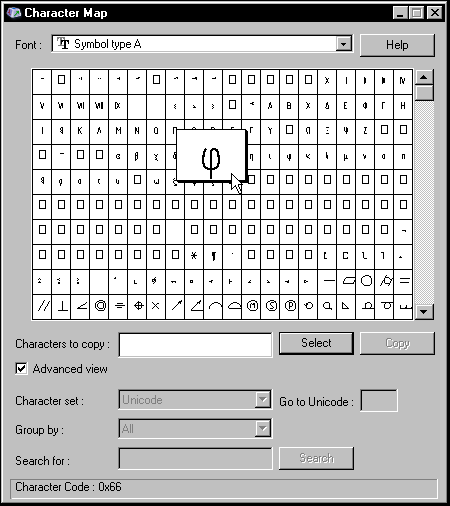
Application window Table of characters
For example, in the file Graphic.pmn there is a line
MENUITEM "Number of drum revolutions at max. deformation|^(Symbol Type A)+121~$m*;3$".
In the user menu, it appears as
Number of drum revolutions at max deformation.
On its selection, a string will be inserted into the text

3.Insertion of symbols from the current font
Into the text, inserted will be a string of the form
AA <symbol with code XXXXX from the current text font> BB
The Y symbol in the structure YXXXXX denotes a modifier for code representation. The modifier shows the numeric system (hexadecimal or decimal) in which the symbol code is represented (Table Modifiers of representation of the symbol code).
To determine the typeface and code of the symbol, you can use, for example, the standard Windows application Character Map (see figure above).
|
If it is required to insert the characters @, ^, ~, $, & into the text from the current font, then instead of the structure ^YXXXXX~ you can use the structures @@, ^^, ~~, $$, && respectively. |

|
Instead of basic structures for inserting special characters and symbols — AA@YXXXXX~BB, AA^(FNAME)YXXXXX~BB and AA^YXXXXX~BB — additional ones can be used: AA&XX~BB, AA#(FNAME)XX~BB and AA#XX~BB respectively. Differences of additional structures from the basic: •to write the number of a special character or a symbol code, only two and not five characters can be used, •in structures for inserting a symbol, a modifier is missing; a set code is regarded as represented in the decimal system. |
Insertion of line break
AA@/BB
Two lines will be inserted into the text: AA and BB.
For example, in the file Graphic.pmn there is a line
MENUITEM \"Angle Stop Valve| Stop Valve@/Angle\".
In the user menu, it appears as
Fillet shut-off valve.
Two lines will be added to the document when it is selected:
Shut-off valve
angular
Therefore, the structure @/ in the file Graphic.pmn is a symbol of hyphen.
|
If a cell of the table of the title block is set to enter one-line text, the line break will be ignored. |
Flag |
Purpose |
|
SEPARATOR |
Drawing of the horizontal separator line. Any text and flags are ignored. |
|
MENUBREAK |
Placement of a menu command into a new column. |
|
DISABLED or GRAYED |
The menu command is unavailable for execution and is displayed in gray color. |
A combination of flags separate by spaces or commas is admissible.
Example of the file Graphic.pmn
Below is a fragment of the Graphic.pmn file on whose you can get acquainted with the structure and syntax of this file.
MENU 12
BEGIN
MENUITEM "A menu configured by the user (Graphic.pmn MENU 12)" GRAYED
MENUITEM SEPARATOR
MENUITEM "I. V. Nikolaeva Vice president|Nikolaeva"
MENUITEM SEPARATOR
POPUP "Developers"
BEGIN
MENUITEM "Polikarpov P.P. Chief of department|Polikarpov"
MENUITEM SEPARATOR
MENUITEM "I. I. Ivanov|Ivanov"
MENUITEM "P. P. Petrov|Petrov"
MENUITEM "S. S. Sidorov|Sidorov"
END
POPUP "Process engineers"
BEGIN
MENUITEM "Yu. Yu. Semenov Chief of department|Semenov"
MENUITEM SEPARATOR
MENUITEM "A. B. Dubinina|Dubinina"
MENUITEM "M. Ya. Petrova|Petrova"
MENUITEM "I. I. Polovinin|Polovinin"
END
POPUP "Compliance assessment"
BEGIN
MENUITEM "Buyanov M.Yu. Chief of department|Buyanov"
MENUITEM SEPARATOR
MENUITEM "P. P. Polikarpov|Polikarpov"
MENUITEM "A. A. Samokhvalov|Samokhvalov"
END
END
A menu invoked by entering last names of officials into the title block graphs corresponds to this section of the user menu file, see. Figure.
When editing the file of the user menu, it should be kept in mind that some of its sections are used by the system for semi-automatic text input of text on labeling sizes and technological designations (for example, from the user menu you can select the value of surface finish parameter). Editing respective sections is not recommended since they contain standard texts and values.
