|
Orientation Management in the Graphic Area of the Model |
Scroll |
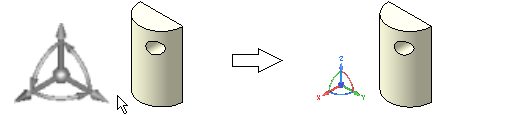
You can change the orientation of the model by rotating the orientation control located in the lower left corner of the model window with the mouse. It consists of three 3D axes of red, green and blue colors showing positive directions of the X, Y, Z axes of the absolute coordinate system (see section Absolute Coordinate System).
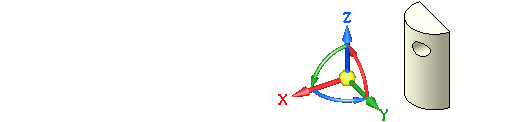
The initial position of the element corresponds to the Isometry YZX orientation. In all isometric orientations, the centerpoint of the element is marked with a cube, and in other orientations with a sphere (see Figure).
|
|
a) |
b) |
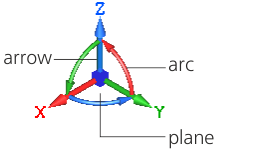
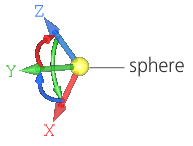
Orientation control: a) isometric, b) in random orientation
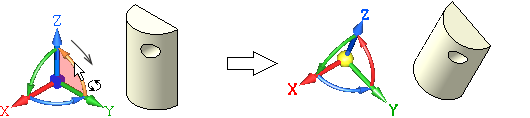
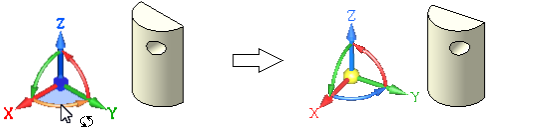
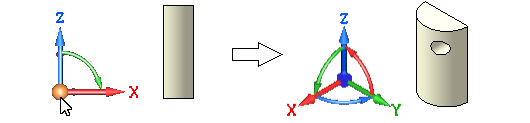
The control is activated and arcs appear on it when the cursor is near the element. When you select an axis, plane or arc on the element, they are highlighted and the cursor changes as well. Clicking the axis, plane or arc (or rotating the arc with the mouse) will rotate the model in space, clicking the sphere will return the model in the initial position. For more details on methods of working, see the Table.
Methods of changing orientation in the graphic area
Action |
Description of the result |
|
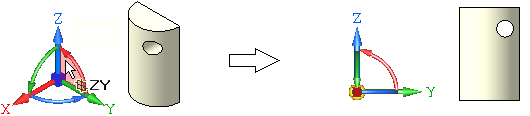
Clicking on axis or parallel plane |
Orientation front, rear, above, below, left, right — the axis is directed towards the observer.
|
|
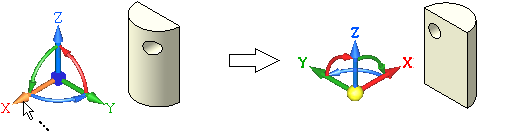
<Shift> + click on axis or parallel plane |
Orientation front, rear, above, below, left, right — the axis is directed away from the observer.
|
|
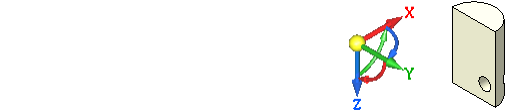
<Ctrl> + click on axis |
180° rotation of the plane perpendicular to the arrow (around one of the axes of this plane): •if the X arrow is indicated – rotation of the YZ plane around the Z axis, •if the Y arrow is indicated – rotation of the ZX plane around the X axis, •if the Z arrow is indicated – rotation of the XY plane around the Y axis.
|
|
<Ctrl> + <Shift> + click on the axis |
180° rotation of the plane perpendicular to the arrow (around another axis of the plane): •if the X arrow is indicated – rotation of the YZ plane around the Y axis, •if the Y arrow – rotation of the ZX plane around the Z axis, •if the Z arrow – rotation of the XY plane around the X axis.
|
|
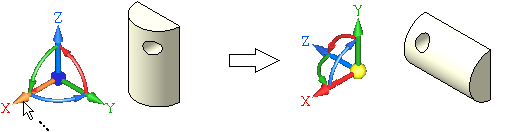
<Alt> + click on the axis |
90 ° rotation of the plane perpendicular to the arrow around this axis.
|
|
<Alt> + <Shift> + click on the axis |
90 ° rotation of the plane perpendicular to the arrow around this axis – in the opposite direction.
|
|
Rotating an arc with the mouse |
Rotation of the arc plane at an arbitrary angle.
|
|
<Ctrl> + click on the arc |
Rotation of the arc plane with pitch of 15° (default value). Angular pitch is specified in the model settings.
|
|
<Ctrl> + <Shift> + click on the arc |
Rotation of the plane with the angle increment pitch – in the opposite direction.
|
|
Click the sphere |
Returns to the Isometry YZX orientation.
|
|
<Alt> + <Ctrl> + <Shift> + mouse wheel scroll (while cursor is over the element area) |
Increases/decreases the orientation control.
|