|
Methods of building consecutive arcs |
Scroll |
The following methods are available for constructing subsequent arcs:
•tangent to the normal of the previous segment,
A subsequent chain arc can be constructed tangential to the previous chain segment or to an arbitrary object.
To build an arc tangential to the previous segment, follow these steps.
1.By default, the previous segment of the chain is already selected as the object that the arc will touch. The name is displayed in the Object field on the Parameter Panel. A phantom tangential to this segment is displayed in the graphics area.
2.Set the end point of an arc. Its radius will be determined automatically. You can also specify the radius/diameter of the arc first, and then specify its end point. To set a radius/diameter, press the Radius  or Diameter
  button in the Arc Parameter group and enter the value into the respective field.
|
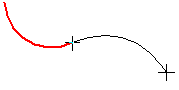
Construction of the subsequent arc regarding to the previous segment of the chain
To build an arc tangential to the previous object, follow these steps.
1.Deselect the default segment selection by removing its name from the field Object in the Parameter Panel or by clicking on it in the graphic area.
2.Specify the object that the arc should touch. The displayed phantom will touch the selected object.
3.Set the end point of an arc. The radius/diameter of the arc will be determined automatically.
You can set the radius/diameter manually before specifying the end point of the arc. To do this, press the Radius button or the Diameter button in the Arc parameter group and set the value in the respective field.
|
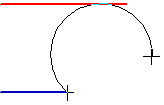
Construction of the subsequent arc of the chain with respect to an arbitrary object
A subsequent arc can be constructed tangential to the previous chain segment and to an arbitrary object. To do this, perform the following actions.
1.The previous segment of the chain is already selected as the first object that the arc will touch. Its name is displayed in the field Object. Specify the second object that the arc should touch. Its name will be added to the field, and a phantom tangential to the two objects will appear in the graphics area. These objects determine the radius/diameter of the arc. It cannot be changed.
2.Set the end point of an arc.
|
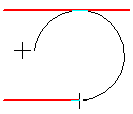
Construction of the subsequent arc regarding to the previous segment and to an arbitrary object
Tangent to the normal of the previous segment,
A subsequent chain arc can be constructed tangential to the normal drawn to the previous line segment at its end point. The point of tangency is the starting point of the arc. In the figure below, the main line shows the previous segment, the dashed line shows the normal to it at its end point, and the thin line shows the arc by normal.
|
|
a) |
b) |
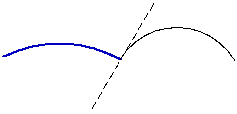

Arc tangential to the normal of the previous segment
a) arc, b) segment
To build an arc by normal to the previous segment, follow these steps.
1.By default, the previous segment of the chain is selected as the object that the arc will be tangential to. To make the arc tangent to the normal, press the key <Ctrl>, move the mouse and release the key. The phantom of the arc is rearranged so that at the initial point it touches the normal to the previous segment.
2.There are two options for constructing an arc.
•Set the end point of an arc. Its radius/diameter of the arc will be determined automatically. If necessary, you can set the required radius/diameter before specifying the end point by clicking the Radius or Diameter button in the Arc parameter group and entering the value in the corresponding field.
•Specify an arbitrary object, which should touch the arc, and then its end point. The radius/diameter of the arc is defined by two objects – the previous segment and the specified object. It cannot be changed.
|
|
a) |
b) |
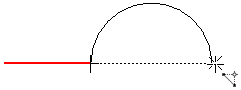
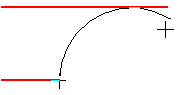
Arc tangential to the normal of the previous segment
a) arbitrary, b) tangential to the object
|
The way tangent to normal saved to build the next arc. To return to building arcs tangent to objects, press <Ctrl>, move the mouse and release the key. |

To build the subsequent arc in an arbitrary manner, follow these steps.
1.By default, the previous segment of the chain is selected – the next arc should be constructed tangential to it. Deselect the segment selection by removing its name from the field Object in the Parameter Panel or by clicking on it in the graphic area.
2.Set the end point of an arc. A phantom of the arc will appear in the graphics area.
3.Specify the point through which the arc should pass, or specify its radius/diameter by pressing the Radius or Diameter button in the group Arc Parameter and entering the value in the corresponding field.
