|
Team work with KOMPAS documents |
Scroll |
A document of the system KOMPAS-3D cannot be edited by two users simultaneously. Therefore, if a KOMPAS document is opened at one of the workstations, then on another workstation it can be open as read only.
A document opened as read-only is marked by a special icon  , which is displayed in the tab header. Besides, when hovering the mouse at the heading of a tab, not only a thumbnail of the document and the path to it appears, but also the [read only] text.
A document opened for reading can be edited but it can’t be saved within the same folder under the same name.
If on your computer a document is opened as read only, then any change to the document made by the user editing it will result in issuing messages described in section Control Over Changes in Documents and Files.
During the work with assembly at one workstation, its components may be opened for editing at other workstations.
If one of the users is editing the source file of an component, then editing this asset in assembly by another user is impossible.
•On invoking the Edit component in place command, editing will not start, and a message on editing the file by another user appears on the screen.
•On invoking the Edit component in window, a message appears on the screen, which allows opening the asset file as read-only (see the following section).
A similar situation occurs in the attempt to editing other inserts as an external reference. For example, if a fragment is started into the drawing by external reference, then if this fragment is edited by another user, it is impossible to start editing the fragment source file in the drawing. It can be opened as read-only.
Opening a document for reading
In the attempt to open a document which is already opened at another workstation, a message shown in the figure appears.
|
Please note that this and other messages mentioned in this section appear if file modification management is enabled in the dialog for setting access rights . Otherwise, the document opens as read-only, but neither on opening the document nor during work with it no messages are issued. |

|
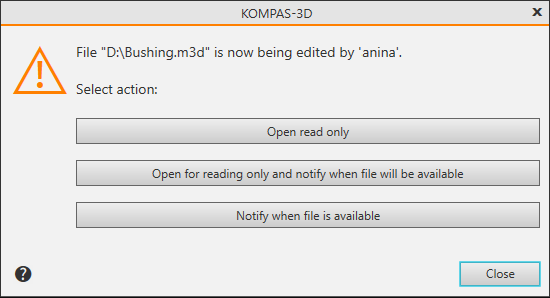
A message stating that the document is currently busy
You can select one of the following options:
•to open as read only.
•The document opens for reading.
•to open as read-only and notify when the file becomes accessible.
The document opens for reading. When the user working with the document closes it, you receive a message saying that the document is available for editing.
•If you did not edit the document, the message will take the form shown in Fig. a. On pressing the Yes button, the document opened for reading is closed, and a document that became accessible is opened instead of it. On pressing the nan button, the document opened for reading remains open.
•If you did edit the document, the message will take the form shown in Fig. b. On selection of the Save changes... option, you will be prompted to save the current document under a different name, then a document that became accessible will be opened. On selection of the Open file... option, the current document is closed without saving, and instead of it a document that became accessible opens.
•Notify when file is available
The document does not open, but when it becomes accessible, you receive a message which takes the form as shown in Fig. a.
|
|
a) |
b) |
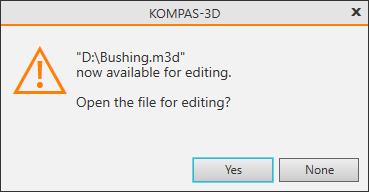
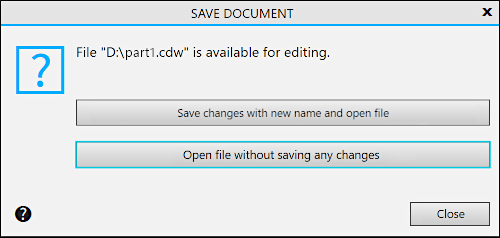
Message on file accessibility:
a) in case a document opened as read-only was not edited,
b) in case a document opened as read-only was edited.
If in the dialog for settings access rights (see section Set Access Rights) the Notify when read-only files are opened option is enabled, a message similar to the one shown in Message that the document is currently occupied also appears in the following cases:
•the file being opened has the "read only" attribute,
•the user trying to open the file has no permission to write or additionally write data into this file.
If the notification option is disabled, then the documents are opened for reading without a message in the above listed cases.
