|
Selection of the current view |
Scroll |
To set a view as current, use one of the following methods.
•in Drawing Design Tree:
•select the required view from the list of views (see the Figure),
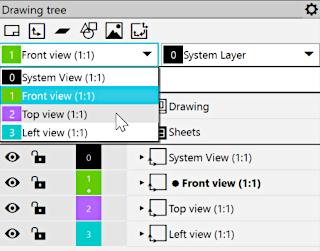
•mouse-click the field with a view number,
•invoke the Make current from the context menu of the view (if a view is already current, then the command is missing),
•in the graphic region of the drawing (only for active and visible views) – double-click an object of this view, then a process of editing an object will be started, and the view in which an object is there will become current.
Any view can be made current, including background and/or hidden. At the same time, the view becomes available for execution of any actions with it, and all the objects of a view are shown in the graphic region. Such a status is retained as long as the view remains current. Once the view has ceased to be current (i.e. the current status is assigned to another view), the source parameters of activity and visibility of a view are restored.
|
Note that icons in the Drawing Design Tree always show the status of the view assigned by the user. They do not change when the view becomes current or ceases to be such. More details on view states... |

See Also
