|
Selection of the current text style |
Scroll |
The name of the current text style is displayed in the Style field on the Parameters toolbar.
If several paragraphs laid out with various styles are selected, then the field is empty.
If paragraph properties or font parameters of the selected text (or a part thereof) differ from those set in the style, then before the style name in the Style name an "asterisk" is displayed. To eliminate these inconsistencies, i.e. to bring the text parameters to those defined by style, press the <Ctrl> + <Space>keyboard shortcut or repeatedly apply the former style to the paragraph(s).
To select a style for the current or selected paragraphs, do the following actions.
1.Expand the list of styles by pressing the arrow button in the right-hand part of the Style field.
The list displays the names of system text styles available in the active document.
|
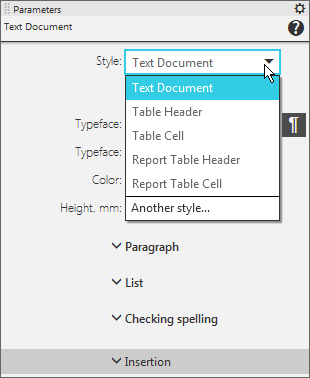
The list of styles while working with the text document
2.Select the required style from the list.
Current or selected paragraphs will be reformatted as per the selected style.
You can apply not a system style, but the style from an external library, or create and use a new style. For this, use the Style...  command.

After fetching the command, a text style selection dialog appears on the screen.
|
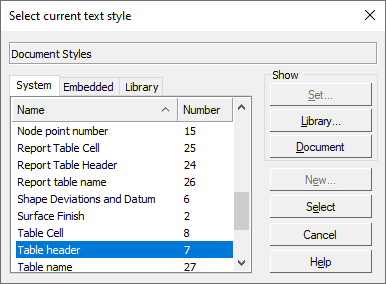
The text style selection dialog during work with a graphic document
On the tabs of the dialog, lists of styles are displayed. The styles in the lists can be sorted by name or number. To change the sorting, click the header of the required column.
Description of controls of the dialog for selection of text style....
