|
Selection of table cells, rows, and columns |
Scroll |
Selection of table cells, rows, and columns may be required, for example, for formatting text inside these rows or columns.
Two techniques for selection of a range of adjacent cells are available.
•Move the cursor around the table, holding the left mouse button pressed.
•Place the cursor to the angular cell of the range, press the <Shift> key and, without releasing it, click in the opposite angular cell.
|
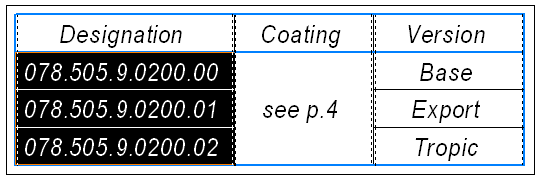
Example of selecting a cell range
The following techniques for selection of a table row (column) are available.
•With the help of the Select 
 command .

•Using the mouse. Move the mouse pointer to the table border opposite the required row or column. Once the pointer becomes an arrow directed towards the table ( ,
,  ,
,  , or
, or  ), click the left mouse button. The row (column) at which the arrow points to will be selected.
Two methods for selection of ranges of table rows (columns) are available.
•Move the mouse to the table border opposite the first row (column) of the range. Once the pointer has taken the shape of an arrow directed towards the table, click the left mouse button and move the pointer in the direction of the last row (column) of the range, holding the left mouse button pressed. Selection will apply to the rows (columns) whose borders will be crossed by the pointer. Once all the required table rows or columns have been selected, release the left mouse button.
•Select the first row (column) of the range, press the <Shift> and, without releasing it, click in any cell of the last row (column) of the range.
To select a cell, move the pointer to the left border. When the pointer becomes an arrow directed towards cell  , press the left-hand mouse button. The cell to which the arrows points will be selected.
