|
Change of table cell sizes |
Scroll |
To change cell sizes, do the following actions.
1.Set the mouse pointer at the cell border. It will take the shape of a bidirectional arrow ( or
or  ).
).
2.Click the left mouse button and, without releasing it, drag the cell border in the required direction.
3.Once the required position has been reached, release the mouse button.
If you place the pointer at the intersection of cell borders (at its corner), you can drag both cell borders at a time. The mouse pointer in this case takes the shape of a quadrilateral arrow  .
.
While dragging the cell borders, the sizes of cells and table in general change as follows.
•The sizes of all the cells of the current column or row of the table change according to the mouse cursor position.
•The sizes of the table remain unchanged.
•The sizes of the column to the right of the current one and/or the row below the current one change in accord with the mouse cursor position.
If, while dragging the borders of a cell, you hold the <Ctrl>key pressed, changes of the sizes will be as follows.
•The sizes of all the cells of the current column or row of the table change according to the mouse cursor position.
•The sizes of the neighboring columns and rows remain unchanged.
•The table sizes change according to the changes of cell sizes.
As you move the borders, current cell sizes are displayed near the cursor.
|
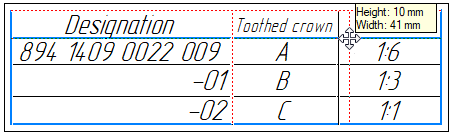
Movement of table cell borders
•As the horizontal or vertical border are moved, the cell height or width is displayed. The border being moved and the border of size count which is parallel thereto are highlighted.
•As you move the cell corner, its height and width are displayed simultaneously. The borders being moved and the borders of counting the sizes parallel thereto are highlighted.
Note that the parameters displayed near the cursor relate to the cell located to the left or above relative to the border being moved. Exception is the movement of upper or right–hand table border. In this case, near the cursor the sizes of cell adjoining this border from below or to the right are displayed.
|
To find out the cell sizes, place the cursor at its right bottom corner. Once the cursor has turned into a quadrilateral arrow, click the left mouse button. Near the cursor, the values of the cell sizes will appear. |

The sizes of cells are changed with the mouse and are displayed near the cursor at the precision of 1 mm. To move the border with higher precision, enter the required size in the cell format setup dialog (see section Formatting cells).
|
You can change borders of rows and columns only if the cell sizes are not fixed (see section Fix Table Size). |

