|
Editing an additional dictionary |
Scroll |
To edit an additional dictionary, do the following.
1.Fetch a dialog for working with additional dictionaries.
2.Select the dictionary in the list that needs editing and press the Edit button.
3.In the Dictionary Edit Dialog that appears on the screen (see figure), perform one of the following actions:
•to edit a word, enter it into the Word: field, then press the Add button,
•to delete a word, enter it into the Dictionary: field, then press the Delete button,
•to edit a word, delete it, and then add, having changed its spelling.
The language of the word placed into a dictionary conforms to the keyboard detailing language.
4.Press the Exit button.
|
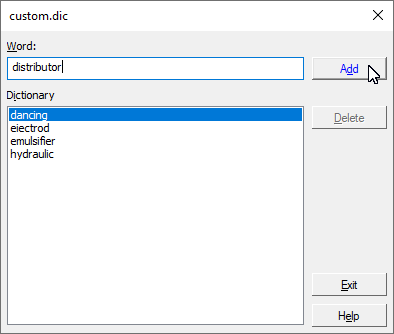
Edit Additional Dictionary dialog
For description of controls in this dialog box when editing additional dictionaries...
