|
Displaying thread on screen |
Scroll |
How threading is displayed on the screen depends on the settings of the. It may be one of the following options:
•realistic image of the thread drawn on a face section (hereinafter — realistic cosmetic thread), Fig. a; the image does not depend on the thread type, but changes if thread pitch changes;
•framed thread cylinder/cone, Fig. b;
•mixed option — both a realistic cosmetic thread and thread cylinder/cone (this is a default option), Fig. c.
|
Depending on the settings of the framed thread cylinder/cone can be of two types: •only cylinder/cone bases (i.e. two circles), •bases and outlines of cylinder/cone (default option). |

|
|
|
a) |
b) |
c) |
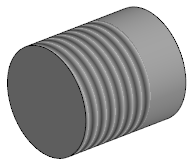
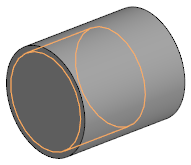
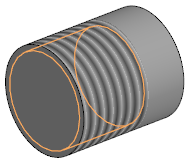
Cosmetic threads on screen:
a) realistic cosmetic thread,
b) cosmetic thread as a framed cylinder, c) mixed option
As you select the thread display option, consider the following.
•Display of the realistic cosmetic thread on screen depends on the graphics card performance.
If the video card allows using the rendering variant Base or Enhanced, and one of these variants is selected automatically by the system or set during configuration, then a realistic image of the thread is displayed on the screen. If the rendering option is either Compatible or Without app. acceleration, then a realistic image of the thread cannot be displayed. For more details on setting a draw variant, see section System control.
•The realistic cosmetic thread is displayed within the existing face (or its part) while the framed thread cylinder/cone is displayed in its entirety, regardless of whether the face is fully or partially displayed. For example, as a result of executing the Section command, the element on which the thread is constructed was cut off. The realistic cosmetic thread will cover the remaining part of the face while the framed cylinder will be fully displayed.
•Displaying the thread as a framed cylinder or cone requires more hardware resources than the realistic cosmetic thread and slows down work on the model to a greater degree.
|
To accelerate work with a large assembly, you can disable thread display using the Cosmetic threads command. The command is invoked from the View — Hide menu for threads created in the assembly, and from the View — Hide in Components menu for threads created in components. |

See Also
