|
Password to access to the model |
Scroll |
Access to the model can be password-protected. After that, downloading the model for viewing or editing will be possible only after entering the correct password.
The assembly model (*.a3d) is protected by entering a password for the specific type (types) of the assembly load model. More details on assembly load modes and passwords of load modes…
Part model (*.m3d) is protected by entering the password for access to the model. To do this, follow these steps:
1.Select the root element (that is, the part) in the Design Tree.
2.Call the Access command from the context menu.
3.The required settings are made in the Access to the model dialog. Enter a password and, if necessary, a comment. Click OK to close the dialog.
4.In the next dialog, enter the password again and close this dialog by clicking OK.
5.Save the model file.
The password for access to the part, if configured, will be requested in the following cases:
•when opening the part file;
•when inserting a part into another model as a component;
•when attempting to edit:
•model component part (using the Edit in window and Edit in place) commands;
•stock part (using the Edit source command);
•part, which is the source of image, in the associative view (using the Edit in window command).
In all the cases listed above, the dialog shown in the figure appears on the screen. To load the model, enter the password in the relevant field. If necessary, you can choose the access method: edit or read only.
|
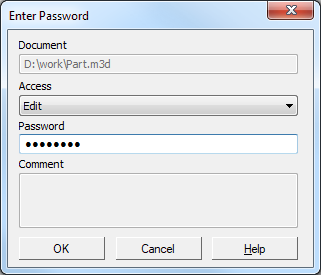
Request password for access to the part model dialog
Changing and deleting a password is similar to assigning a password: to change a password in the Access to the model dialog you must enter a new password, and to delete a password, delete all characters of the password. Save the model file after changing or deleting the password.
