|
Fitting the plane size to the model size |
Scroll |
You can change the size of a rectangle symbolizing a plane (either constructive or coordinate) so that they correspond to the model bounding box size. To do this, fit the plane size.
|
|
a) |
b) |
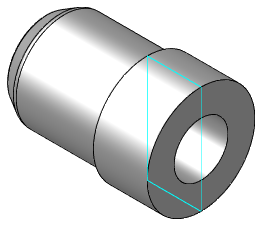
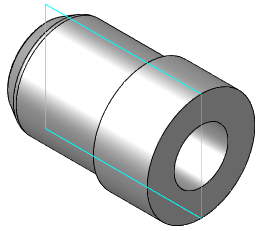
Fitting plane dimensions:
a) original dimensions of normal plane b) fitting result
You can enable fitting of the plane size using one of the following methods:
•When you build, edit an object or set up properties of object, on the Parameter Panel, set the Shrink to Fit toggle switch to I (enabled).
•Select an object (objects) in the Model Tree or in the graphic area and call the Shrink to Fit command from the context menu.
•Select the object(s) in the Model Tree or in the graphic area. Enable the display of the Parameters toolbar and in the Properties section from the Shrink to Fit list, select the Yes option.
|
If fitting to size is enabled, you cannot manually change dimensions of the rectangle symbolizing the plane. |

Sizes of the plane for which fitting is enabled also change when the model dimension is changed.
If size fitting is enabled, after switching to the plane edit mode the size of the rectangle symbolizing the plane may change, as it is calculated based on dimensions of objects which existed in the model at the moment of the plane creation. After editing is completed, the rectangle size is restored.
After fitting is disabled, sizes of the rectangle symbolizing the plane do not change. If necessary, you can change them manually.
To perform certain operations using a plane with size fitting enabled, note the following features:
•Creating arrays. If the plane is a source object of an array, then planes which are array instances may have different dimensions. This is possible when planes are located in the model at angles different from the source plane angle (for example, in an array by concentric grid). For more details on array construction...
•Copying objects. When a plane is copied from another model, the plane phantom sizes are those of the source object. After the operation is completed, sizes of the plane copy are fitted to the dimensions of the current model and can become different from the phantom sizes.
When you copy objects, the state of the source plane fitting (enabled/disabled) is transferred to the copy of the object. You can disable/enable fitting of the plane copy. To that end, highlight the copy in the model Tree, invoke the Properties command from the context menu, and specify the required fitting state. More details on creating a copy of geometric objects...
