|
Display of the Object Caption in the Graphic Area |
Scroll |
For certain objects of a model, captions containing names of these objects can be displayed in the model graphic area. These objects include:
•constructive and coordinate planes and axes,
•control and attachment points,
•local coordinate systems.
|
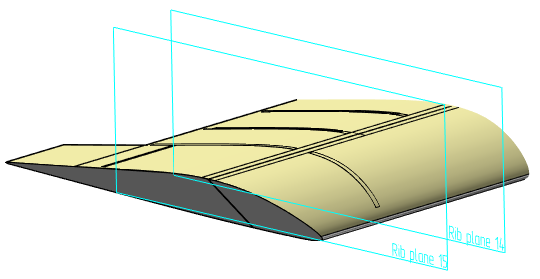
Example of display of a constructive plane name
|
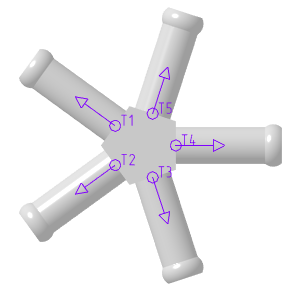
Example of display of an attachment point name
You can display a caption in the graphic area with one of the following methods:
•When you build or edit an object or set its properties, set the Yes toggle switch on the Parameter Panel to I (enabled).
•Select the object(s) in the Model Tree or in the graphic area. Enable the display of the Parameter Panel and in the Properties section, select the Yes option from the Yes list.
The caption with the name will be displayed next to the object in the same color as the object (the caption font is determined by the setting enabled in the Default Font dialog).
Caption display in the graphic area has the following features:
•If the object name changes in the Tree, it also changes in the graphic area.
•Clicking the caption in the graphic area selects the entire object. This is convenient for selecting small objects such as points or LCSs.
•Captions of LCSs, control or attachment points are displayed regardless of the model scale.
Captions of a plane or axis cease to be displayed on the screen if the dimensions of the object in pixels become smaller than the size set in the system.
Note that when you copy planes and axes, the caption state in the source object (Show/Do Not Show) is transferred to the object copy. You can change the state of the object copy caption. To do this, select the copy in the model Tree, run the Properties command in the context menu and indicate the required state of the caption. More details on creating a copy of geometric objects...
|
If required, you can simultaneously hide captions in the graphic area for all objects (planes, axes, control and auxiliary points and LCSs) for which they are displayed. To do this, run the View — Hide — Object Captions command and/or View — Hide in Components — Object Captions command. |

