|
Placing the BOM in the Drawing Sheet |
Scroll |
To place the BOM in the drawing, run the Management — BOM — BOM on Sheet — Show command.
After running this command, a table appears above the title block of the drawing. It contains the BOM items available in the drawing.
All parameters of this table (the number and format of columns, header, etc.) correspond to the parameters of the table included in the title block of the current BOM style as Table for BOM.
All settings of the current BOM style (number of reserved lines, sorting, etc.) apply to this table. In other words, this table with items is the BOM of the current style without marquees and its own title block.
|
The designation and name of the drawing affects the display of BOM items containing the code and name of the document. This influence is similar to the way the BOM designation and name affects the items in it (see section Displaying Items that Contain Code and Name of the Document). |

When creating new BOM items in a drawing, they will be automatically included into the BOM table on the sheet.
Double-clicking the table starts the subordinate mode of working with BOM items. All changes made in this mode will be transferred to the BOM on the sheet after closing the mode window.
|
You can create a custom style, for example, for a connections table or for a list of elements, and then place the connections table on a sheet containing an electrical diagram or place a list of elements on a sheet with a kinematic diagram. If corresponding items containing geometry are created when working with the diagram, this will later facilitate searching for the image of a wire or diagram element. |

To disable BOM display on a sheet, run the Management — BOM — BOM on Sheet — Show command once again.
Placing BOMs of different styles on a drawing
The Management — BOM — BOM on Sheet — Show command allows placing only one BOM on a sheet, i.e. the BOM of the current style.
If the drawing contains several BOM descriptions, you can enable placement of BOMs of any other styles on the BOM sheet, in addition to the current style. To do this, run the Management — BOM — BOM Descriptions command. The Description Management dialog will appear, see figure.
|
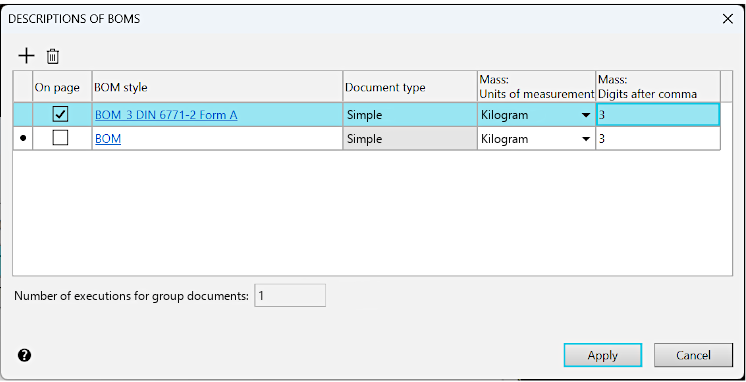
BOM Descriptions Management dialog
In the list, find the description containing the required style and enable its option in the On page column.
Close the BOM Descriptions Management dialog by clicking Apply. A BOM table containing items of the BOM of the selected style will appear on the drawing sheet.
If you need to cancel the placement of the BOM on the sheet, reopen the BOM Descriptions Management dialog and disable the option in the On page column.
See Also
