|
Creating Versions of BOM Items |
Scroll |
Another way to add BOM items is to create versions of the current item. Versions are created only for base BOM items that meet the following criteria:
•sorting is made by the Designation column,
•the type of data in the Designation column is text.
Follow these steps to create one or more versions of a BOM item:
1.Select the source item, i. e. the base BOM item a version of which you want to create.
2.Run the Insert — Version command  .
.

3.In the dialog that appears on the screen, enter the version numbers of the item (see figure).
Numbers should be separated by commas and dashes. The numbering of the versions does not need to be continuous.
|
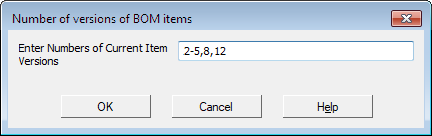
Dialog for entering the version numbers
As a result, new items will appear in the BOM, differing from their prototype only by suffixes in the designation. These are version items.
For example, if you enter the version numbers "2–5,8,12", then 6 new items will appear in the BOM, and their designation will differ from the source item designation by suffixes –02, –03, –04, –05, –08 and –12.
When you select a version item in the Item Settings group, the Version Object toggle switch is activated on the Parameter Panel.
The display of designations and reference numbers of versions depends on the setting of the current BOM. To view and/or modify this setting, run the Settings — BOM Settings command  and in the BOM settings dialog that appears, activate the Variations section.
The display of designations and reference numbers of versions is managed by the Item Versions group of elements.
•If the Full symbols option is enabled, then designations of new items will consist of the designation of the source item with an added suffix which is the version number, see the figure.
|
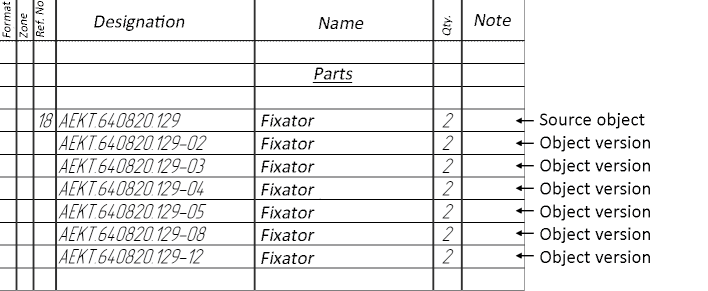
Version items. Show full designation
•If the Only Version Numbers option is enabled, the designations of new items will also consist of the designation of the source item with addition of the version number; however, the constant part of the designation is not displayed in the BOM table — only the version number is visible, see the figure.
|
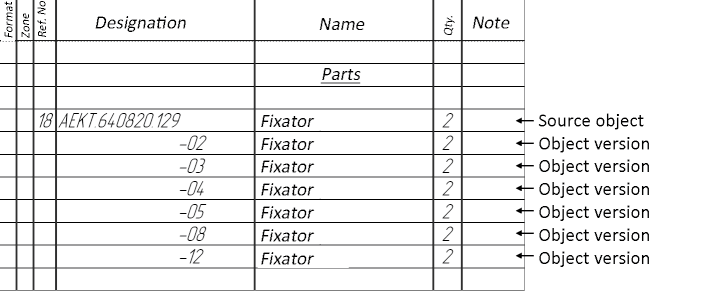
Version items. Designation shows only the version number
Auto sorting of items takes into account the full designation. Due to this, version items are arranged in order of numbers behind their source item, even if only their numbers are displayed in the Designation column. That is why version items can be created only in those sections of the BOM that are sorted by designation.
•If the Ref.No increases option is disabled, then the Ref.No increases and Show Position options are automatically disabled in the settings of BOM items created by adding versions. The Version Object option in the settings of version items is always enabled automatically. For more details on settings of BOM items, see section BOM Item Settings.
