|
Backup copy |
Scroll |
Backup ensures the maximum safety of documents. Therefore, it is always recommended to use at least one of the features of backing up files.
Setting up backup copying is performed in the Backup copying of documentsdialog fetched with the Settings — Parameters... — System — Files — Backup copy command.
Controls of the dialog for setting up backup copying
The element |
Description of setting |
|
Save original copy |
If the option is enabled, then the system saves the original copy of a document in a set directory. The copy is saved prior to running the very first command to write a document on the disk during the work session. Saving is performed with copying the full path of file access. For example, if we are working with a drawing saved to the file c:\Work\First.cdw, and as the folder for saving original files the d:\Originalis specified, then a copy of the original file will be written as d:\Original\c\Work\First.cdw. |
|
Browse... |
The button allows to specify a folder for saving the initial copy of a document. The button is available if theKeep the original copyoption is enabled. After specifying the folder, the full path to it is displayed in the To Folder field. |
|
Save previous copy |
If this option is enabled and the folder for saving is specified, then the system saves the previous copy of a document state. The copy is saved every time of writing a document onto the disk during the work session. Saving is performed with copying a full path to the file. For example, if we are working with the drawing c:\Work\First.cdw, and as the folder for saving original the folder e:\Backupis specified, then the original copy will be written as e:\Backup\c\Work\First.cdw. If the option is enabled, but the folder name is not specified, the original copy will be written to the same folder where the document itself is located. At the same time the, the file name of the copy is formed as per the following template: <document file name> + <.> + <filename extension> + <.> + <bak> (for example, example.frw.bak). Restoring documents from *.bak files is described in the section. Recovery of documents from backup files. |
|
Browse... |
The button allows to specify the folder for saving the previous copy of the document. The button is available if the Save backup copy option is available. After specifying the folder, the full path to it is displayed in the To Folder field. |
|
In Same Folder with the document |
The button allows to explicitly give up saving the previous copy in a folder specified using the Browse... button. After clicking In Same Folder with Document, the To Folder button field is cleared. A copy will be written into the same folder and with the same name as the document but with the *.bakextension. |
|
Save mirrored copy |
"Mirror" copying is an additional means for backup up data during which an additional, duplicate copy of the document is created in another location of the disk or on a different physical disk (for example, on a remote networked disk of enhanced reliability). If the option is enabled, then the system will save the "mirrored" copy of the document into a set folder every time of writing to the disk during the work session. Saving is performed with copying the full path of file access. For example, if we are working with the drawing c:\Work\First.cdw, and as the folder for saving original copies the folder g:\Mirroris specified, then the “mirrored” copy will be written as g:\Mirror\c\Work\First.cdw. |
|
Browse... |
The button allows to specify the folder for saving the "mirrored" copy of the document. The button is available if the Save "mirrored" copyoption is enabled. After specifying the folder, the full path to it is displayed in the To Folder field. |
Having completed backup copy setup, press the OKbutton. Click Cancel to discard all changes and close the dialog box.
In the folders specified for placement of backup copies when saving files, the folder structure matching the location of the main document file on disk is created. The name of the upper folder in the created structure conforms to the name of disk on which the main file is saved. For example, the drawing First.cdw is saved in the folder C:\Work\, with D:\Reserveis selected as the folder for saving the copy. The full path to the file of the document copy will be D:\Reserve\C\Work\First.cdw.
To save backup copies of various types, it is not recommended to specify identical folders since that may result in loss of information. In attempt to complete setup of backup copy with such parameters, a warning message will appear on the screen.
|
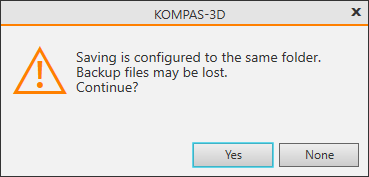
Buttons of this message allow to confirm setup or to give it up. If you give it up, you can change the folders for backup copies. If the setup is confirmed, backup will be performed. In so doing, only one file similar to the current state of the saved main file is created.
