|
Auto export model |
Scroll |
Automatic export is mainly used to integrate KOMPAS-3D into a PLM system environment using the JT format. The export parameters and the location of the resulting files in this case depend on the PLM system requirements to such files.
Activating and configuring the automatic export
1.Run the Settings – Parameters... — System — Files — Auto Export command.
2.On the right side of the dialog that appears enable the Export to JT option (see figure).
|
Setting for automatic export of models dialog |
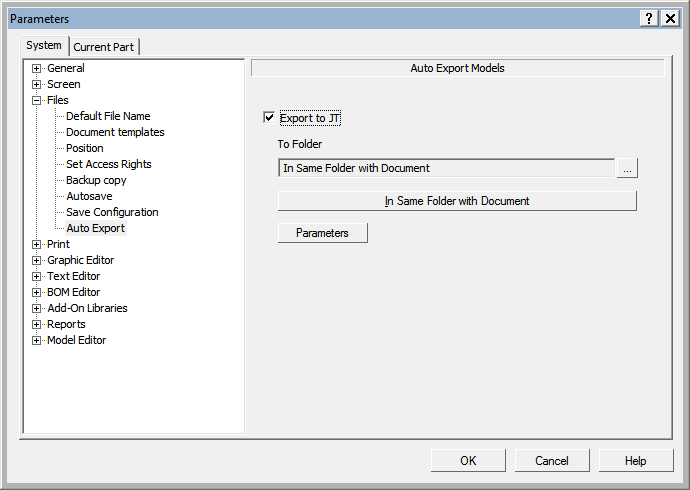
By default, the JT format files are saved in the same folder as the source file. The name of the jt-file consists of the name of the source file and a suffix that copies the extension of the source file. If required, you can specify a different folder for writing. Please note that in this case the export is made by copying the full file path.
More details on configuring automatic export to JT format...
To set the export options that will be used for automatic saving click Parameters. Set the parameter values in the dialog and click OK.
|
Unlike the parameters specified for export using commands (see above), the parameters specified during the automatic export setup are saved in the system. |

3.Click OK to close the dialog for setting up automatic export to JT format.
After the automatic export to JT format is enabled, the following operations will be performed when saving models:
•write the current model to file,
•export the current model to JT file according to the settings: with the parameters specified during the configuration and to the folder specified during the configuration.
Please note that the model is exported to the JT format not only when calling the Save and Exports commands, but also in all other cases of writing the model to disk.
|
If automatic export is enabled, the models saving time may be longer. |
