|
Managing visibility of sets |
Scroll |
You can manage display of toolbar sets in the list of the Tool Area. For this, the Display Set command is used, which is called from the context menu of the set.
By default, the display is enabled. You will see a tick mark next to the command name in the menu. To disable the display of the set, call the Display Set command from its context menu. The tick next to the name of the called command will disappear. The row of the set will move to the end of the list, and the text and icon in the row will become gray. This means that this set of toolbars will not be displayed in the Main system window when working with documents of the type for which the setting was made.
|
|
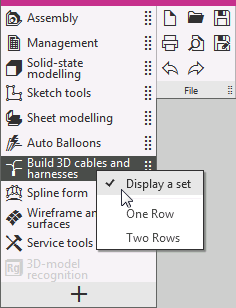

Disabling the display of sets
The disabled set will not be removed from the system. If necessary, you can enable the display of the set again by calling the command Display set. After the set is enabled, its row in the list goes back to its original appearance. It becomes available for changing the position with the mouse. More details about configuring the position of sets in the list...
|
Since the disabled set remains in the list of sets, you can see which toolbars are included in the set and configure them, as needed. |

You can manage the display of both system sets, as well as for user.
|
For the system sets, you can only disable visibility. You can both disable and Delete. |

See Also
