|
Custom sets |
Scroll |
Creating a custom set
You can add Custom sets.
Step-by-step instructions
1.Click on the field with the icon  at the bottom of the set list. In the list of sets of the current Tool Area, a new set will appear with the name My set and an icon predefined in the system by default. It will be last on the list.
2.Specify a name for the set. To accomplish this, call the Rename command from its context menu, enter the desired text, and press the <Enter> key.
|
A custom toolbar can be renamed in the Tool Area Constructor. To do this, open the Sets and Panels and find the required set. On the right side of the tab in the preview window, toolbars included in the set are displayed, and above the preview window — a field with the name of the set. Enter the required text in this field and press <Enter>. |

3.Select an icon for the set from the list of icons. To do this, place the cursor on the icon in the row of the desired set and click the left mouse button. When the list of icons appears on the screen, move the mouse to the desired icon and release the button. The icon in the row of the set will be replaced by the selected one.
|
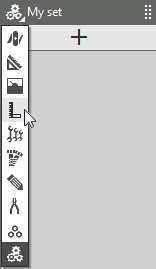
Selecting the set icon
4.Move a new set to the desired place in the list of sets. More details on sets location settings...
5.Add toolbars to the set. You can add existing toolbars or create new ones. More details on configuring the structure of toolbars...
Adding a custom set to the Tool Areas of various types
Custom A set created in one of the Tool Areas can be added to the Tool Areas of other types using a tab. Sets and Panels Windows Tool Area Constructor.
Step-by-step instructions
1.Enter the setting mode for the Tool Area you want to add a set to. To do this, open the document of the required type and run the Interface setting mode.
2.In the Tool Area Constructor window, go to the Sets and Panels tab.
3.From the drop-down list at the top of the tab, select the type of the Tool Area that includes the desired custom set.
4.Find a set in the list of sets and toolbars of the Sets and Panels. For quick selection of the set, you can use the search bar.
5.Place the cursor on the row of the set.
6.Click the left mouse button, hold it down and move the set to the list of sets of the Tool Area. In the process of moving, the cursor appears as a four-sided arrow  , and in the list of sets, the places where a set can be placed are highlighted.
|
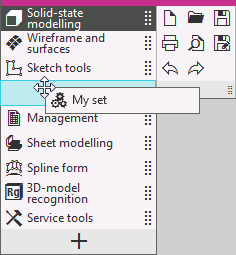
Adding a previously created custom set to the list of sets
7.When you reach the required position, release the mouse button.
|
If the set you want to add is already in the list of sets, the rows in the list will be highlighted in red, and the set will not be added. |

You can Disable the display user-defined set or delete it. To delete, use the Delete command from the context menu of the set.
•If the set is included only in one Tool Area, after you call the Delete command, it will be removed from the system.
•If the set is included in more than one Tool Area, after you call the Delete command, it is removed only from the current Tool Area.
|
Please note the following when deleting a set. •If the set contains a toolbar that is not included in other sets, it will be deleted with the set. •A set that was deleted from the last Tool Area in which it was included cannot be restored. You can cancel deletion while working in the interface setting mode not completed. To do this, use Edit – Undo command or Cancel button, located on the toolbar of the Tool Area Constructor. After you exit the mode, you can full reset setting, resulting in the Instrumental area returning to its default view. |

