|
Text search and replace |
Scroll |
The text processor KOMPAS-3D provides the capability for automated search and replacement of text fragments. You can search and replace specific symbols, words, or an arbitrary part of a string (substring). Automated text replacement allows for quick replacements of a word or expression (for example, a part designation) that occurs multiple times in the document.
To find substring, fetch the menu command Edit — Find...  . A dialog (Fig. a) will appear on the screen where you should enter the text you are looking for and set the search criteria.
To find a substring and replace it with another, fetch the menu command Edit – Replace.... The find and replace settings dialog will appear on the screen (Fig. b).
|
|
a) |
b) |
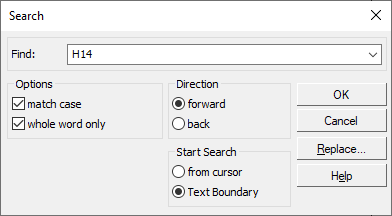
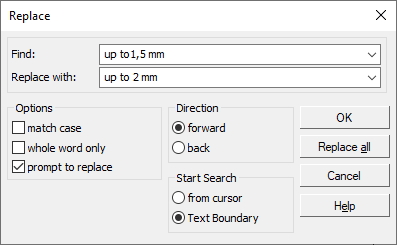
Dialog for setting parameters:
a) text search, b) text search and replace
Description of the controls of the dialog for searching text...
For a description of controls in the dialog box for replacing text...
To start search or search and replace, press the OK button. After that, one-time search or replacement is run. The found or already replaced substring is highlighted in the text.
To repeat search or search and replace with the same parameters, fetch the menu command Edit — Continue (or press <F3>). If search and replacement are run with the Replace all button pressed, you don’t have to fetch this command.
If the sought for substring is not found, a message of that will appear on the screen.
The substrings entered for search and replacement are stored in memory until the end of the session. Therefore, if necessary, they can be selected from the list and not entered again.
|
The text replacement command can be used for deletion of a set substring from the text. For that, enter the sought-for substring into the Find field, and leave the Replace with field empty. |

|
Search and replacement of text in the table is effected within the current cell. |

