|
Start page |
Scroll |
In the absence of opened documents in the KOMPAS-3D system window, the Start page is displayed.
|
If there are open documents, you can navigate to the Start Page by clicking the |

 button at the beginning of the line.
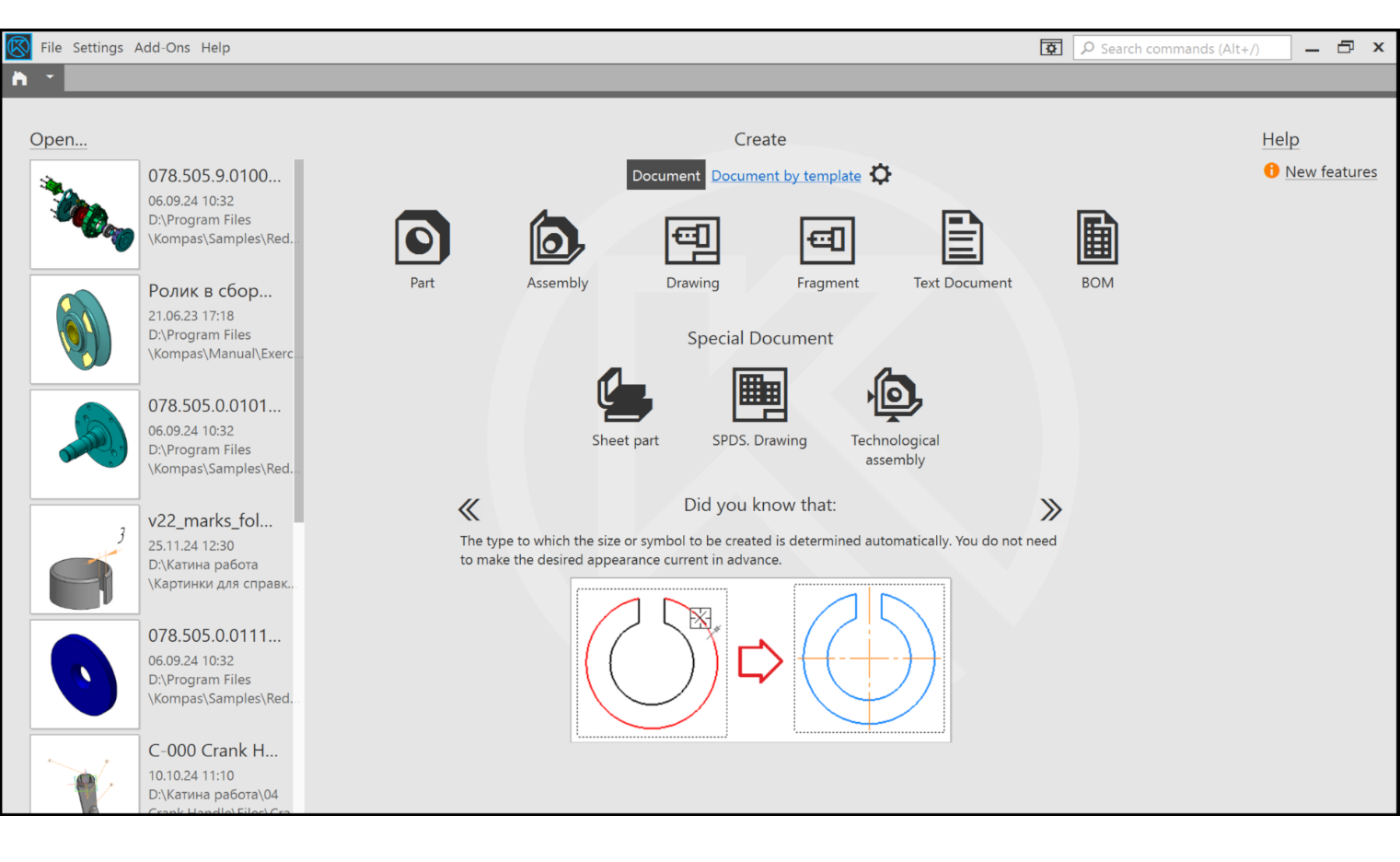
Start page
The Start page contains:
•links for quick opening recent documents (on the left),
•shortcuts for creation of new documents with default settings or using a template (centered at the top),
•a tip on effective work tricks (in the center at the bottom),
•links to help and Internet resources (reference).
For a detailed description, see the sections below.
Recent documents
List of the recent documents allows quick opening of recent documents. When the system is started for the first time, this list contains references to the examples of the documents created in KOMPAS-3D. In the next sessions this list will contain links to the last opened documents. For each item in the list, the following information is displayed: a document thumbnail (which enlarges when the mouse hovers over it), the document name, the date of the last modification, and the file path on the disk.
To open a document, click the corresponding row in the list or invoke the Open... command from the row's context menu. You can open a document even if it isn’t present in this list. For this, invoke the Open... command (located above the list) and select the desired document in the dialog that appears.
To delete a document, click on the icon  that appears when you select a document in the list and is displayed to the right of the document name, or invoke the Remove from Recent command from the context menu of the line.
You can delete all documents from the list at once. To do this, run the Remove from recent command from the context menu of any document or from the File — Recent menu. The command is available if the list includes at least one recent document.
If a cross is displayed instead of the thumbnail, it means that the document is not fount in the specified path. In the attempt to open a document, a message stating a missing document appears on the screen. In this case you can delete the document from the list using Delete from Recent List button in the message, or close the message.
New Documents
New documents are created using corresponding references. There are two ways to create new documents.
•Create document with default settings – the Document link is active in the new documents area. Icons of different types of documents are displayed on the screen.
To create a document of the desired type, click its icon.
•Create document using a template – the Document by template link is active in the new documents area. A list of templates is displayed on the screen.
To view a template, click its row in the list. The picture of the template will appear to the right of the list.
To create a document by the required template, double-click the corresponding row.
Your preference (Document or Document by template) is preserved in the system.
For more information on other ways to create documents, see section Creating a document.
Tips
Tips on using the system, with explanatory pictures, contain additional information on the operation of KOMPAS-3D. Each tip describe one of the best practices that allows the user to work more efficiently or to better use the capabilities of the software.
To move to the next or previous tip, click the move icon  or
or  .
.
Reference materials
Links to reference materials and online resources allow you to quickly find answers to questions about the operation and use of the KOMPAS-3D system.
See Also
