|
System window |
Scroll |
Right after launching KOMPAS-3D, the Start page is displayed in its window, where you can create new documents, quickly open recent documents, and access help information. More details...
After creating or open any document in the KOMPAS-3D window to display elements for working with documents and objects within them (see figure).
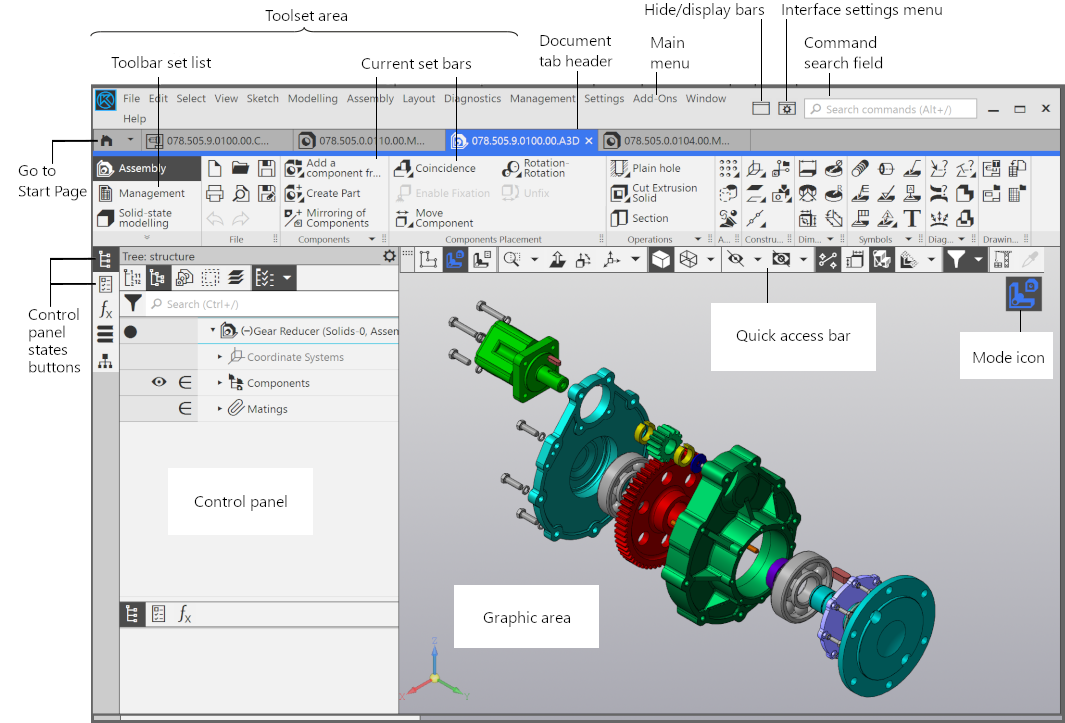
Interface elements KOMPAS-3D
Description of the interface elements of KOMPAS-3D is provided in the table.
Interface elements of KOMPAS-3D
Name |
Description |
|
Toolset area |
Used to select commands for creation and editing of document objects. Includes: •toolbars set list – located on the left of Toolbar Panel, is intended for switching between sets, •bars of the current set – occupies the remaining part of the Toolbar Panel, contain buttons for running commands. |
|
Header of the document tab |
Is used for switching between open documents (each document is displayed on a separate tab). The context menu of the tab header contains commands for control of documents and their tabs. |
|
Main menu |
Serves to run system commands. Contains the names of menu sections. The content of the Main menu depend on the type of the current document and the system operating mode. |
|
|
Button controlling the display of bars |
Serves to disable and enable on-screen display of the Toolbar Panel and control panels. This setting is applicable to the current window KOMPAS-3D until the end of the session in it. Disabling the bars allows for increasing the area of the graphic region. In so doing, commands are run from the Main menu, and commands are managed using the context menu. Note that if toolbars are not displayed, pre-defined input is impossible because there are no input fields on the screen. |
|
Button of the setting menu |
Contains the interface settings. The following actions are available in this setting: •Setting up the interface color and selecting appearance of icons in the Toolbar Panel. More details... •Resizing icons and text captions in the interface. More details... •Setting document tab positions. More details... •Customizing the toolbar. More details...
•Setting shortcut keys to invoke commands in KOMPAS-3D. More details... |
Command search field |
Serves to find commands by their names. If you enter a text in this field, a list of matching commands will be displayed blow. Select a command in the list to run this command. |
|
|
Start Page Launch Button |
The button allows the Start page of KOMPAS-3D to be displayed in the window.. From the button menu you can run commands for creating new documents and opening existing documents, and also see a list of recently opened documents. To return from the Start Page to the document window, click its title in the tab toolbar. |
Control panel button states |
Buttons controlling the state of control panels. A certain button corresponds to each panel. If the button has black background, the panel is shown on the screen (expanded), and if the background is grey, the panel is not shown (collapsed). Availability of control panels is configured with the menu commands Setup — Panels. The buttons from panels, whose availability is enabled, are displayed in the KOMPAS-3D window Any panel can be docked to the right or left border of the graphic area. |
|
Toolbar |
The selected area of the window containing various control elements. |
|
Graphic region |
It occupies a large part of KOMPAS-3D window. Serves to display the content of the current document and work with it – for creation/editing a drawing or model, entry/editing the text of a text document or BOM. To indicate specific operating modes, for example, the mode of assembly spacing, the print preview mode, sketch mode and others, in the graphic region icons of the modes are displayed. |
|
Quick Access Toolbar |
Contains commands for selection of the mode, image control, and others. The content of toolbar is context-sensitive. Located on top of the graphic areaand can be moved horizontally. |


