|
Creating and saving documents |
Scroll |
There are several methods to create a document:
•click on the document shortcut of the desired type in the Start page;
•run the command to create a document of the desired type using the Start pages  , located at the beginning of the line Document tabs Windows KOMPAS-3D,
•invoke the New Document dialog and click on the document shortcut of the desired type; methods to invoke the dialog:
•File — Create...  command,
•Create... button on the File toolbar of the toolbar panel of the window,
•double click on the free space of the row Document tabs.
If there is a Template assigned, the document is created with settings that were in the template. If a template is not set, the document is created with default settings.
|
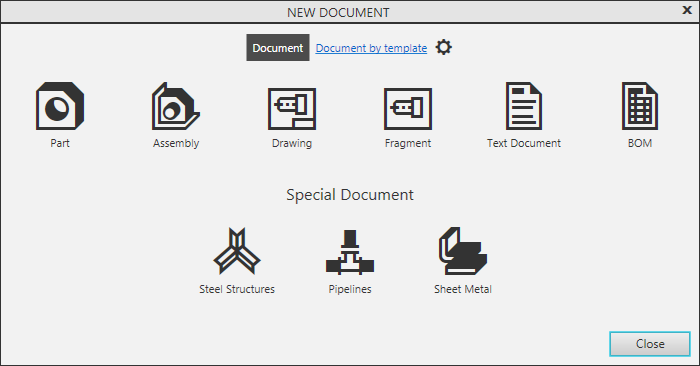
Document creation dialog
If you need a document with specific parameters (like sheet format, material, information about author, etc.), you can create a document from the selected template. To do this, when creating the document in the Start page or in the New Document dialog, click the Document by template link, and then double–click the desired template name. More details about templates...
Later you can return to creating documents with default setting, by clicking the Document link.
Your preference (Document or Document by template) is preserved in the system.
See Also
To save the document, invoke the Save  command.

When saving a document for the first time, the file saving dialog appears on the screen. Specify the folder in it where the document should be written, enter the file name and press the Save button.
By default the system suggests the file extension according to the document type: m3d for a part, cdw for a drawing and so on.
Later when invoking the file saving command for the document, it will be automatically saved in the same folder and in the same file as the last time. In other words, the file created when saving the document previously, will be replaced with a new file containing the latest revision of the document.
Immediately after saving the document, the Save command becomes unavailable and remains so until any changes are made to the document. After opening a document, the Save command is generally unavailable, but In some cases, it may be available.
If you need to write the new document revision apart from the old one, use the Save As.
Tips and Tricks:
•When trying to save the document in a file that already exists, an overwrite confirmation request appears (to replace the old document with the new one). If an existing file is currently open, you cannot replace it – a "cannot write" message appears on the screen.
•To save all opened documents at once, invoke the File – Save All command. When saving documents which are written to the disk for the first time, the screen will display a dialog where you should specify the file name and the folder for writing.
•You can save a document as a Template. To do this, in the File Type field of the save dialog, select the Template <document type> option.
•By default, when saving for the first time, the file name is formed from the designation and name (if they are specified in the document). You can change the settings.
•We do not recommend without absolute necessity to change the default extension of the document file name, as subsequently it will make searching for the file very harder (it will not be displayed in the list of documents of the appropriate type in the file opening dialog).
Saving the document under a different name
Sometimes you need to save the document after editing it, without overwriting the old file version, keeping it unchanged. In this case, you use saving the document under a different name or in another place on the disk.
Call the File – Save as...  command..
Further actions are similar to saving a document for the first time: you should specify the folder and/or file name to write.
In addition, the Save As... command allows:
•to convert KOMPAS-documents to other formats, and when working with 3D models — also to record part into assembly file and assembly into part file,
•to save KOMPAS documents as Document templates for new documents.
To perform any of the additional actions, first select the desired row from the File type list.
