|
Preview window interface |
Scroll |
The preview mode has its own main menu, toolbar panel and Parameter panel.
|
In this part of the manual, the terms "menu", "toolbar panel" and "Parameter panel" refer to the corresponding UI items of the preview window unless specified otherwise. |

You can run some commands from the shortcut menu.
|
|
a) |
b) |
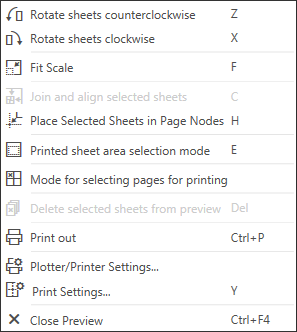
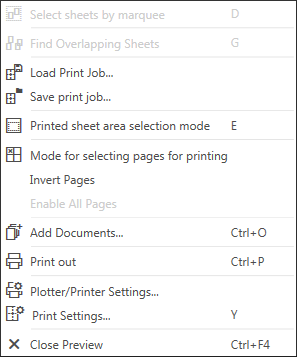
Shortcut menu in the preview mode
a) selected sheets; b) empty space in the print field
You can use shortcut keys to run commands, see Section Special actions in the print preview.
If the current paper format in the printer settings is smaller than the image of the document(s), then the software automatically calculates the number of pages to print the document. The print field in the preview mode will be divided (using dashed lines) into parts matching the currently configured paper format and orientation.
You can place the documents in the print field in the most efficient way (see section Sheets location in the print field).
The information about the size of the paper sheets including the non-printable areas (margins outside the printing area supported by the printer), and the necessary number of pages are displayed in the status bar in the bottom of the screen.
Please note the terms of this part of the manual: a print page is paper sheet displayed in the print field; a document sheet is a sheet of single-sheet or multi-sheet document selected for preview. A bounding rectangle of the image is the document sheet for a fragment or a model.
