|
Editing grids of centers |
Scroll |
Various methods of editing are available to change the created grid of centers.
You can select a grid of centers with a mouse and change its parameters and configuration, or to start the process of editing and to make changes in this process.
Change of a grid of the centers without editing process start
The grid of the centers can be edited by means of the Parameter Panel. Details...
You can reconfigure the grid of centers by selecting it with the mouse and moving the defining points. Moving the defining points is performed for a grid of centers in the same as for other objects of the graphic document. Details...
The number and placement of defining points of a selected grid depends on the number of base items as well as on the method of creation of a grid (for a circular grid – closed or opened, with a center mark or without it; for the linear – with breaks or without).
Examples of placement of defining points of the selected grid of centers are shown in the figure.
|
|
|
a) |
b) |
c) |
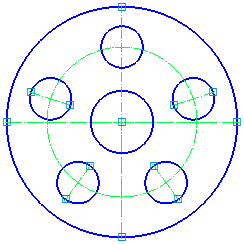
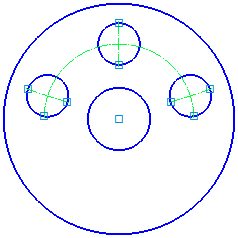
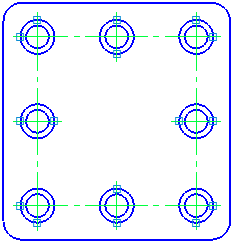
Display of defining points of the selected grid of centers:
a), b) circular, c) linear
Axes of grid can be extended/shortened by moving the defining points at the ends.
If it is required to undo changes made to the axes, invoke the Restore initial view command from the context menu of selected grid of centers. After invoking the command, the grid will be rebuilt so that each axis be running through the center of the datum object and protrude outside it to a specified distance.
Change of the grid of centers in the process of editing
The grid of centers can be changed by starting the editing process.
The defining points of a grid of centers in the process of editing differ from the points displayed on simple selection of grid. Examples of defining points of grids of centers in the process of editing are shown in the figure.
|
|
|
a) |
b) |
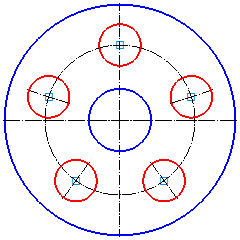
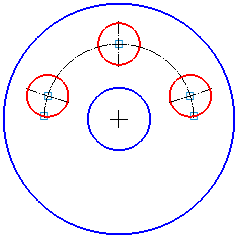
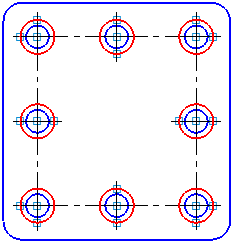
Display of the defining points in the course of editing:
a), b) circular grid of the centers, c) linear grid of the centers
The point in the center of datum object allows to delete the centerline running through the center of this object. For that, select the characteristic point in the center of object and press the <Delete>key. The defining point will be deleted. During deletion of a characteristic point, the name of the corresponding object is removed from the Objects field.
