|
Trimming objects |
Scroll |
KOMPAS-3D allows you to:
Trimming commands can be applied to any curves except construction lines.
Equidistant lines can be edited using trimming commands. However, after the first editing of an equidistant line its integrity will be restored.
Objects for trimming can be specified one by one or in a group. To specify a group of objects, you use a Secant segment.
To delete a portion of the object limited by points of its intersection with other objects, use the Trim a curve  .
.

Step-by-step instructions
1.Select the curve trimming mode. To do this, click the appropriate button in the Selected Portion of the Parameter Panel:
 Delete the Selected Portion — the section of the curve bounded by the points of its intersection with other objects will be deleted.
 Retain the Selected Portion — the segments of the curve external to the specified portion will be deleted.
2.Specify a curve portion to delete. To specify a group of objects, you use a cut line.
Trimming will be done automatically.
3.To complete operation of the command, click the Finish  .
.
In the figure to trim both segments those portions were specified which were located inside the circle. However, the upper straight line was selected in the mode of retaining the selected portion, and the lower one in the mode of deleting it.
|
|
a) |
b) |
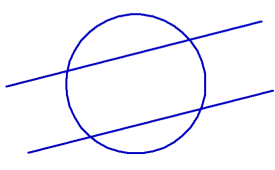
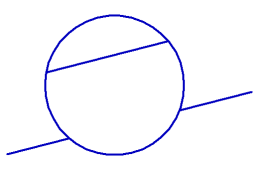
Trimming line segments
a) the original image, b) the command execution result.
Trimming a curve by two points
To delete a portion of the object limited by two specified points, use the Trim Curve by Two Points  command.
Step-by-step instructions
1.Select the curve trimming mode. To do this, click the appropriate button in the Selected Portion of the Parameter Panel:
Delete the Selected Portion — the section of the curve bounded by points of its intersection with other objects will be deleted,
Retain the Selected Portion — the outer segments relative to the specified curve section will be deleted.
2.Specify the object to trim. Its name will appear in the Object field.
3.Specify the starting point and the ending point which limit the curve portion you need to delete. If the curve is closed, specify a point inside the portion being deleted.
Trimming will be done automatically.
4.To complete operation of the command, click Finish .
|
|
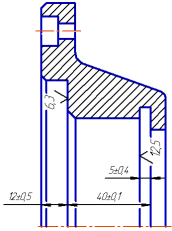
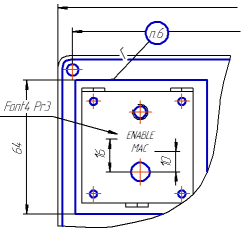
Trimming objects by two points
