|
Configure Extended Cell Format |
Scroll |
Advanced cell format — A set of title block cell properties that determine which service functions will be available when filling out the corresponding title block column in a document (automatic entry of certain types of data, transferring data from one cell to another, calling up a user menu, etc.). Furthermore, the cell properties set when configuring the extended format determine the ability and procedure for transferring data from one title block to another when changing the document's formatting.
When creating a title block the extended format must be configured for each cell that will be filled in by the user when working with the document.
The advanced cell format parameters are configured in the dialog Extended cell format.
|
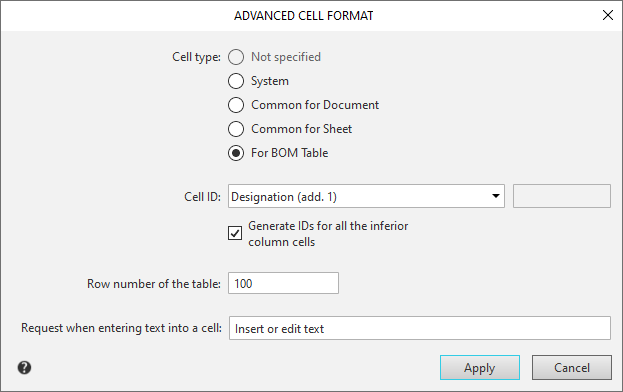
Advanced Cell Format Settings Dialog
To open the dialog for the desired cell, place the cursor in it and click the Advanced cell format...  button on the panel Table of toolbar area f the window of toolbar area of the window or on Parameters panel in the group of buttons Format, which is part of the Cell group of elements of the Table section.
Each empty cell of the title block table is characterized by the following parameters:
•type,
•ID,
•ID value.
Until the setting of the extended cell format is not completed, its type is considered undefined — in the group Cell type of the dialog the Type Not Defined option is active. When filling out the title block in the document, data entry into a cell of an indefinite type is impossible. Therefore, for all cells that will be filled, it is necessary to determine the type. The following options are available:
•System,
•Common for document,
•Common for Sheet,
•For BOM Table.
After selecting the cell type, you need to specify its identifier. The identifier determines what kind of data will be entered into the cell (identifier values are displayed in the Message Area when editing the title block table).
For all cell types except General for sheet, the identifier is selected from a drop-down list. If none of the available identifiers is suitable, select Custom from the list. The Sheet-wide cell identifier is a user-entered number. A unique ID of General for sheet cell type is that it can be linked to a system or library property.
A detailed description of cell types and rules for specifying identifiers are given in the table.
Types of title block table cells
Name |
Description |
|
System |
A cell of this type is filled in the document title block automatically (without user intervention). This type is selected, for example, for the Sheet number or Number of sheets columns of the main table in text documents and BOMs. To specify which data should be entered into the system type cell, select the required identifier from the list. The following options are possible: •Sheet number — current sheet number. •Number of Pages — the number of sheets of the current document. •Format — designation of the format of the sheet or sheets of the current document (filling in the cell is possible if a standard format is selected for the document: A4, A3, etc.). •Filename (full) — the file name of the current document with the full path to this file. •Filename (short) — the file name of the current document without the full path to this file. •Line notation and hyphen — designation of the current document (from a cell of type Common for document with data type Document Designation) and a hyphen. •Custom — the cell must contain data whose type is not in the list. Automatic filling of such a cell is impossible, it will need to be filled manually. |
|
Common for Document |
Data entered into a cell of this type when filling out a title block can be automatically transferred to other cells in title block tables on the same sheet and on other sheets of a multi-sheet document. The transfer condition is that the cell types and their identifiers match. When changing the document design, the data from this cell is transferred to the cells of the “new” title block, which have the same type and the same ID. Therefore, for the cells of all the main inscriptions between which automatic information transfer should be performed, you need to set the cell type to General for the document and select the same identifier. For example, set the document type to General for the following columns: the Title Block Designation column and the additional column for placing the designation (columns 2 and 26, see GOST R 2.104-2023). Select the Document Designation identifier for each of them. Subsequently, when filling out the title block, you can enter the designation in any of these columns on any sheet of a multi-sheet document. The designation text will be automatically entered into columns 2 and 26 of all sheets. An additional option when configuring a cell of this type is to link it to a system or library property. A cell linked to a property will automatically display the value of that property defined in the drawing. More about cell linking with the feature... |
|
Common for Sheet |
The data entered into a cell of this type when filling in the title block can be automatically transferred to other cells of the table of title blocks on the same sheet and on the other sheets of a multi-sheet document. The transfer condition is the coincidence of cell types and their identifiers. When changing the document detailing, the data from this cell is transferred to the cells of the "new" title block, having the same type and the same identifier. The content of the cell of this type is not transferred in all sheets of a multi-sheet document. Type of Common for sheet is assigned for example to a column Change title block, into which the document change number is entered. When replacing one type of title block with another, the content of the column are automatically transferred to a similar column with the same identifier. |
|
For BOM Table |
This type is intended for the cells of the BOM table (the detailing containing the title block with such a table is then included in the BOM style). When installing this type of cell, you need to select an identifier from the list (Position, Name, Designation, Number, etc.) and specify the row number of the BOM table in which the custom cell is located. All cells in the same column must have the same identifier and differ only in the row number. To speed up the configuration of single-type column cells (assigning them identifiers), use the option Generate identifiers for all cells below in column. |
In the advanced cell format settings dialog, you can also enter text that will be displayed in the Message Area when the cell is filled in the main label (when the cursor is inside the cell). This text must be entered in the Prompt for entering text in cell field.
|
The query string should explain to the maximum extent the purpose of the current cell, since it will serve as the only prompt of the system when entering text into this cell. |

If you want the user menu to be available during text input into the cell, enter the symbol "|" (vertical toolbar) immediately after the query text and then enter the section number File of user menu, the lines of which will be displayed when this menu is invoked in the fillable graph of the title block. Entering text into the main text boxes by selecting the required lines from the user menu speeds up its filling and allows you to eliminate typing errors possible when typing text from the keyboard.
If you want the date selection dialog box to be available in the date entry cells, after the text of the query and the "|" symbol, enter the number 4099.
