|
Model-source window |
Scroll |
The additional model window (hereinafter referred to as the Window) is designed to perform various actions with the model or its objects.
Depending on the process in which the Window is used, it may be referred to by different names. For example, when inserting of arbitrary view from model. The window is called Model-source, in the process of setting correspondence — Replaced geometry and etc.
Also, depending on the process, the set of actions available in the Actions window will vary. For example, when creating a copy of model geometric objects from file in Window the objects to be copied are specified; when placing a component using the By matings. The window can be used to specify the mating objects of the component; when combining objects with initial alignment by arrow view and point The window is used to give the desired position to a movable object and to set a point on its surface, etc.
he Window can display individual model objects or the entire model (current or source model of operation objects).


 or
or
|
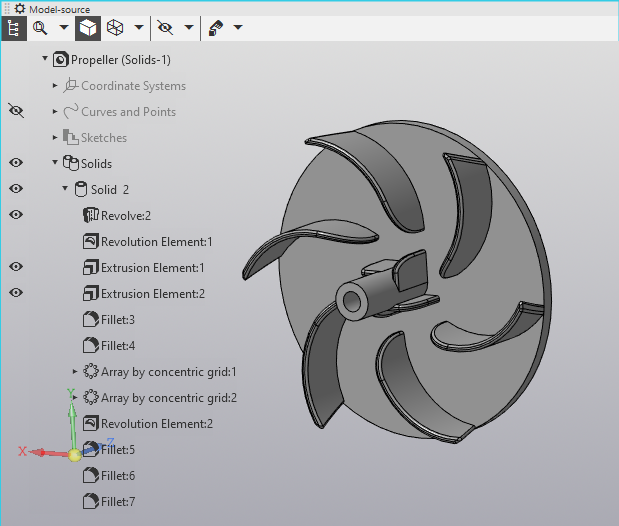
The source model window heading contains a button  , which allows to adjust the position of the window within the graphical area. To set the position you want, click the button and access the appropriate command from the menu that appears:
•Top left,
•Bottom left,
•Top right,
•Bottom right.
In addition, you can move the Model-source window by dragging it with the mouse by the heading. You can also resize the window by dragging its border with the mouse.
The Model-source window contains a model display area and a toolbar. The toolbar includes the following buttons:
•Show tree  – controls the display of the model Design tree contained in the Window. Press the button to display the Tree and release the button to hide it. The tree is displayed in the upper left corner of the Model-source window.
•Show all  — controls the display scale of objects in the Window. To change the scale, press the button or invoke the required command from its menu. You can also change the scale by rotating the mouse wheel.
•Shaded wireframe  , Wireframe
  — control the type of objects display in the Window. By default, the type matches the one selected in the current model. To change the type, press the required button or invoke the corresponding command from the Wireframe button menu.
•Hide all auxiliary objects  — controls the display of auxiliary objects in the Window. To hide all auxiliary objects, click the button. To hide only some of them, press the button and specify the types of hidden objects using the commands from its menu.
•Select  — allows you to select bodies and surfaces that are visible/invisible in projections onto the main planes. Use the button menu commands to make your selection.
The source model window is used to select model objects and, when inserting a view, also to create a custom orientation.
If the required object is located close to another object or hidden beneath it, you can us object selection. To do this, move the cursor over the object and select the Object selection command from the context menu  . You can also press the key combination <Ctrl> + <T>.
If necessary, you can rotate the model displayed in the Window using the keyboard shortcuts and using the mouse.
