|
Combining a polygonal object with a model object |
Scroll |
During design, it may be necessary to compare a manufactured part with a 3D model.
To perform the comparison, the finished part is scanned, the resulting polygonal object is added to model file, where it is compared with the solid/surface of this model. To insert a polygonal object, use the command Import to current model, to compare objects — command Deviation analysis  .
.
After inserting a polygonal object into the model, it may be far from the object it needs to be compared with. To correctly analyze the deviations, it is necessary to align the objects, i.e. achieve a position in which the standard deviation of the polygonal object points from the corresponding points of the solid/surface is minimal.
During the alignment process, only the polygonal object being checked moves. The model object against which the check is performed remains stationary.
The alignment operation is not shown in the Design tree, so you cannot change the position of the polygonal object by editing the parameters of the previously performed alignment. You can use the alignment command again to change the current position of the object.
The figure shows an example of alignment a polygonal object obtained by scanning a finished product during production with the original 3D model of this product.
|
|
a) |
b) |
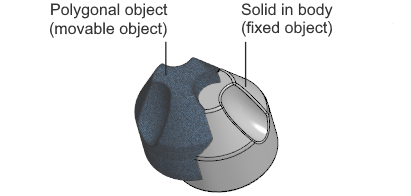
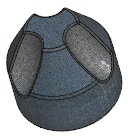
Alignment a polygonal object with a model object:
a) initial position of polygonal object and solid,
b) alignment result
To perform the alignment, use the command Match  .
.

Procedure
1.Select a model object — a solid/surface/polygonal object — with which you want to match the polygonal object being checked. To do this, specify the required object in the graphic area or in the Model design tree. The selected object is highlighted, and its name is shown in the Unmoved object field.
2.Select the polygonal object to be matched. To do this, select the required object in the graphic area or in the Model design tree. The selected object is highlighted, its name is shown in the Moved object field.
3.By default, the alignment of objects is performed in 10 iterations. This value is considered sufficient to achieve good quality of alignment of objects.
If the alignment result is unsatisfactory, and changing other alignment parameters does not give the required result, change the value in the Number of iterations field. This can increase the accuracy of alignment, but the process will take longer.
4.By default, the option Points selection is enabled in the Parameter panel. This means that the system automatically selects the most suitable points for alignment. Using a selection speeds up the alignment process and in most cases gives good results. In particular, this allows for better match of objects that partially intersect or have incomplete conformity in shape, for example, if only a section of the surface is scanned for comparison.
If you are unable to achieve a good result during the match process, disable the option Points selection.
5.Depending on the shape and position of the objects, determine whether the polygonal object needs to be pre-aligned to the model object.
|
Preliminary alignment allows you to first «roughly» match objects, and then apply the main alignment algorithm to them — the iterative closest points algorithm, within which the point cloud of a moving object is matched with the point cloud of a unmoved object. |

The match method is selected from the list Initial alignment. Available options are presented in the table.
Initial alignment options
|
Option |
Description |
|
Usage |
|
Do not perform |
No alignment is performed. |
|
Used for objects with similar elements. These elements, as well as the objects themselves, should be close to each other. |
|
According to inertial characteristics |
The principal axes of inertia of objects and their centers of mass are aligned. It is performed automatically. |
|
Used for objects of similar shape, not symmetrical, located at a distance from each other. |
|
By three points |
The specified points of the objects are aligned. Additional user action is required. |
|
Used for objects of any shape and location. |
|
In arrow direction and point |
Initially, the moving object is positioned similarly to the stationary one, and then the specified points of the objects are aligned. Additional user action is required. |
|
Used for objects of any shape and location. |
The specifics of using preliminary alignment in different models, as well as setting parameters for the selected method, are described in Initial alignment section.
6.To see how the objects will be arranged after being aligned with the specified parameters, click the button View result . The button becomes available after specifying the objects to be matched and the initial alignment parameters for the selected method.
After pressing the button, the moved polygonal object will hide, and its phantom will appear in the graphic area in a new position (see the figure below).
If the combination takes time, the progress bar of the command is shown in the graphic area. The process can be stopped by clicking the button Cancel on the panel with the indicator.
7.Visually evaluate the result of the alignment. In doing so, pay attention to the areas of the model object surface that do not coincide with the phantom of the polygonal object; lines of intersection of the surface of the object with the phantom; on protruding areas of the surface of the object/phantom.
If the result does not meet expectations, change the method and/or parameters of the initial alignment, for example, specify other points for the method By three points. You can also change the number of iterations or disable the generation of point sampling. After changing the parameters, click the button again View result. The phantom of the moved object will take a new position.
The figure shows the preview of the result for two variants of combining the same objects. The phantom of the polygonal object is pink.
|
|
a) |
b) |
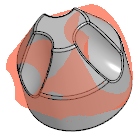
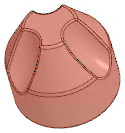
Evaluation of the result of the match:
a) inaccurate alignment (the phantom of the polygonal object is rotated relative to the body of the model),
b) precise alignment (the phantom of the polygonal object coincides with the body of the model)
8.When the required position of the object is reached, confirm the alignment by pressing the button Create object  .
.
The polygonal object will move to the set position.
9.To complete the command, click the button Finish.  .
.
The objects are ready for performing Deviation analysis.
|
If the deviations obtained during the analysis exceed the expected values, you can run the object match process again and move the polygonal object relative to the position it occupied as a result of the previous alignment. You can also undo the alignment and re-align the objects. |

