|
Configurator dialog |
Scroll |
This dialog allows you to configure the set that includes KOMPAS modules, applications, libraries and tools. For more details about the configuration...
The dialog is fetched with the Applications — Configurator... command.

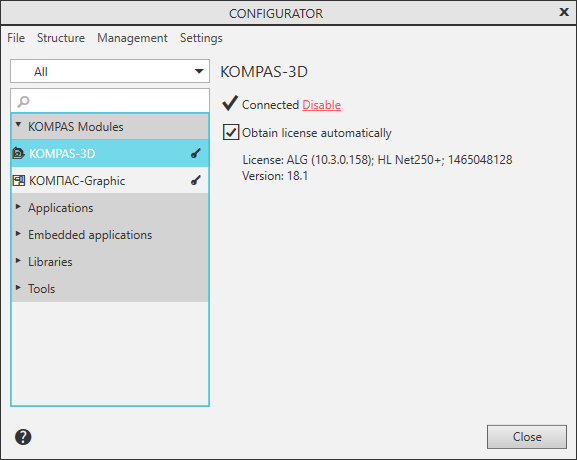
A description of the dialog controls is given in the tables.
General Controls of the Dialog
Name |
Description |
|
Menu |
The menu contains commands to work with the configuration on the whole, add components and perform other actions. For more details on the commands... |
|
List of configuration components |
Contains Configuration components, grouped by types and by purpose. The set of groups in the list, as well as components containing in them, depends on the filter applied to the list (see description below) and on which components are included in the configuration. If any group contains no components, it is not displayed in the list. To select a component to view information about it and to configure, select it in the list. The component setup controls will appear in the right-hand part of the dialog (see below). |
|
Filter |
This is a drop-down list with options of filtering criteria for configuration components by their license state. By default the option All is selected, which means fully complete list. |
|
Search field |
Allows you to find the desired component in the list of configuration components. The search is performed in the list limited by the selected filtering option. |
|
Component settings elements |
Are displayed in the right-hand part of the dialog if a configuration component is selected in the list. The set of elements depends on the component type. For a description of elements, see table Configuration component settings elements. |
Configuration component settings elements
The element |
Description |
|
|
Enabled/Suspended/Disabled |
For the module KOMPAS-3D and applications. The element controls the connection of a component, i.e. obtaining a license for it: if the component is connected, the license for it is busy, and if it is disconnected or suspended, it is free. •The KOMPAS-3D module can be in the state of Connected or Disconnected. In the first case, the configurator shows the icon •The application can be in the state Connected, Disconnected or Paused. If the add-on is connected, the configurator displays the icon |
Obtain license automatically |
For module KOMPAS-3D. The option controls automatic capture of license for working with 3D design module after launching KOMPAS-3D. •If the option is enabled, the license is captured automatically, provided that the hardware protection key has available licenses. •If the option is disabled, you'll have to manually get the license to work with 3D models. This can be done using the Attach link in the Configurator or by using the command. Obtain License for KOMPAS-3D. You can also automatically get the license for 3D modeling in the Configurator using the Settings — Automatically obtain license to work with KOMPAS-3D command or the corresponding option in Dialog System Management. |
|
|
Exclude from Configuration |
For libraries, Add-Ons, utilities. The element deleted the component from the configuration. The excluded component is deleted from the list in the Configurator dialog box. The file of the component remains intact in its folder. To add a component into the configuration, you use the Structure menu commands in the Configurator dialog box. |
Use library to insert standard texts |
For libraries. The option allows to determine which of the libraries will automatically activate when invoking the command for insertion of a standard text. This option can be enabled only for one library, by default it is Kompas_tdp.kle. To launch another library for insertion of standard texts, enable the option for it. Insertion of standard texts from the library is possible if it contains the elements in the .kdw format (KOMPAS text documents) or in the .txt format. If this option is not enabled for any library, then inserting standard texts is not available. |
|
|
Help |
For some Add-Ons and some built-in Add-Ons. The element allows to launch the Add-On help system. It is displayed if the Add-On is connected and has a help file. |
Information line |
For all components except utilities. This line may contain information about the component license, version of the component, and its file location. |
|
Fields for setting up utilities |
For utilities. A set of fields containing information about the utility. Can be edited. •Name — contains the name of the utility and allows you to change it. •Path — contains the path to the utility file. To change the path, click on the field name and specify the utility file in the dialog box that appears. You can also change the field contents manually. •Parameters — field for entering command launch parameters. •Description — a field to enter arbitrary text. |


All changes made in the dialog will be applied automatically.
To finish your work in the dialog, click Close.
