|
Diagnostics of a parametrized sketch |
Scroll |
In this section:
Color indication of objects in the sketch
Sketch with erroneous projection links
A sketch in a model can have one of the following statuses:
• Undefined — at least one object in the sketch has degrees of freedom,
• Defined — the objects in the sketch have no degrees of freedom,
• Overdefined — The sketch contains an unreliable constraint system and/or locked dimensions. This status does not indicate the presence of degrees of freedom.
The sketch status is determined by the system. It changes automatically when constraints and/or dimensions are added or removed. Learn more about changing the status of a sketch and its objects...
The thumbnail status symbol—"-", "+", or "!"—is displayed on the thumbnail mode icon  and in the Structure Tree between the icon and the sketch name. For example, when editing a sketch with the status Undefined , the mode icon looks like this
  , and for a sketch with the status Defined —
  .
.
Tips and Recommendations
•It is recommended that sketches in the model are defined. In this case, the process of solving the systems of equations for sketches will be more stable.
•In the process of creating constraints and dimensions in the sketch, may appear ambiguous constraints (these include excessive and poorly conditioned constraints). Icons for such restrictions are orange in color. The presence of ambiguous constraints does not change the status of the sketch — the sketch remains defined or underdefined (depending on the presence of degrees of freedom). Ambiguous constraints do not hamper operations with the model and can remain in the sketches, i.e., the orange color is not considered an error. It talks about how the system of constraints is suboptimal and points out areas where it can be improved. You can modify the sketch constraints set or leave it as is.
•The sketch has the Overdefined status may mean that the constraint system created in the sketch could cause problems when editing the model or result in errors. It is recommended that you edit the sketch constraints and/or dimensions so that its status changes.
If the status is Overdefined is caused by the presence of locked dimensions in the sketch—that is, dimensions whose values cannot be changed (such dimensions are displayed in red in the sketch)—the presence of this status is not critical for working with the model. However, if you need to restore the ability to change a dimension’s value or change the sketch’s status, you must edit the constraints and/or dimensions so that the lock is removed.
•When editing the sketch's constraints and dimensions, pay attention to the constraints marked with orange icons and the dimensions displayed in red.
Color indication of objects in the sketch
Geometric objects in the sketch have different colors depending on whether they have degrees of freedom.
If an object has at least one degree of freedom, then its color matches the current style of rendering. When an object looses all degrees of freedom, its color changes: by default, the object becomes dark green if display theme of interface is Light, and purple if Dark. If necessary, the color of objects that have no degrees of freedom (i.e., fully defined objects) can be changed in the Constraints and degrees of freedom section of the settings dialog.
|
The Equidistant object is always displayed according to the assigned style. This is because an equidistant is not used to create constraints and is not checked for degrees of freedom. The only restriction—Associativity Equidistants are not taken into account when determining sketch status. |


Dimensions in a sketch have the following colors:
•Controlling dimensions — black for Light interface theme and white for Dark,
•Info Dimensions — gray,
•blocked dimensions — orange.
The figure shows an example of a predefined sketch with default object indication settings (in KOMPAS-3D, the Light theme is selected and the workspace background is set to white).
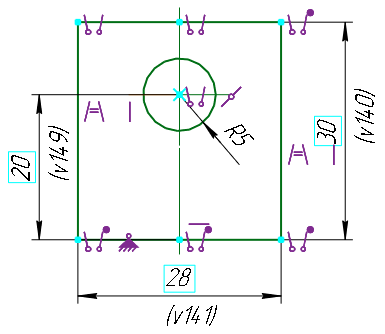
Display of a predefined sketch
Sketch with erroneous projection links
When building a sketch, you may usesnap to model objects, projecting model objects into a sketch, creating the curves of intersection of model objects with the sketch plane.. In this case, projection links are created between the sketch objects and the model objects.
As a result of editing the model, the model object associated with the sketch object may be changed in such a way that projection links cannot exist, for example, if the change in the shape or position of the model object leads to the degeneration of its projection in the sketch. Projection links may be also lost if the sketch plane position is changed.
If erroneous projection links appear in a sketch, an error occurs: "A link was lost" or "Degenerated edge/face/plane projection". Such a sketch is marked in the Design Tree as erroneous.
In the sketch editing mode, one can see which objects contain errors. Icons for erroneous constraints in the graphic area are colored red. A symbol "x" appears next to them. The dimensions labeled to the lost objects and the lost objects themselves also have a red color.
|
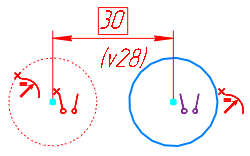
Displaying incorrect projection links
If an erroneous constraint is part of a group consisting of several constraints of the same type, the icon representing the group is also highlighted in red and marked with an "x" (for more information on constraint groups, see the section Viewing Objects Involved in a Constraint ). The figures show an erroneous Parallelism constraint that is part of a group of constraints of the same type.
|
|
a) |
b) |
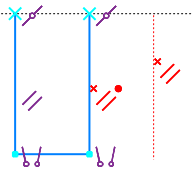
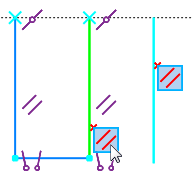
Display of an erroneous constraint, included in the group of constraints with the same type
a) the group of constraints is collapsed,
b) the group of constraints is expanded, an erroneous constraint is activated.
To fix the error in the sketch, delete invalid projection links.
See Also
