|
Defining the borders of the extended surface |
Scroll |
To define the edges of the extended faces, select the edges in the graphics area toward which the extension will be made, or select the faces if you want to extend them beyond all edges.
The names of the selected edges or faces are displayed in the Borders field on the Parameters Panel. A phantom of the added surface segments is shown in the graphics area.
When defining edges, take into account the option selected in the Result group. It determines which objects are available for selection.
•If the Source Surface button is selected, the extension can only be performed toward the open edges.
•If the New Surface button is clicked, the edges can be either open or closed (a "closed" edge refers to a shared edge between two faces).
When specifying a closed edge, you can extend either of the two faces to which it belongs. The system automatically determines which face to extend. You can change the face to be extended by clicking the button Change side  to the right of the Borders field.
|
An extrusion face can be extended toward multiple closed edges only if those edges form a connected set. To specify the edges, you can select either individual edges or the entire face. For example, to extend a solid (hole-free) face of an extrusion in all directions, simply select that face. If the face has holes, however, to achieve the same result, the edges of the holes must not be included in the selection. Therefore, instead of selecting the face, you should select its outer edges that are connected to each other. |

Selecting edges based on conditions
Selecting faces based on conditions
Methods for selecting edges
A single selection can include one or more edges that meet a specific condition. To specify the condition, use the elements in the Quick Access Toolbar.
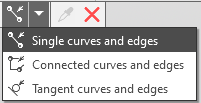
More about selecting edges based on conditions...
Methods for selecting faces
If you need to extend a face beyond all its edges, you can select the face itself rather than its edges.
Depending on the specified condition, selecting a face will choose either that specific face or multiple faces that satisfy the condition. To specify the condition, use the elements in the Quick Access Toolbar.
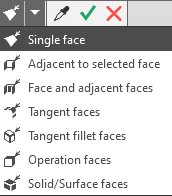
Learn more about selecting faces based on conditions...
|
If the Source surface operation result is selected, the specified face is extended only toward the open edges of that face. |
See also
