|
Working with leader lines branches |
Scroll |
Available in the following commands: Leader, Stamping Designation, Marking Designation, Reference number, Geometric Tolerance.
During creation or editing a designation, it is possible to add and delete branches of the leader line, to create kinks on the branchings. Work with branchings is performed using characteristic points.
Defining points of the leader have a different shape depending on the operations performed by them.
•The point  allows to add branches (except for the designation of form tolerance).
•The point  allows you to add a branch to the designation of form tolerance, to change the position of the tolerance table.
•The point  allows to delete the branch; move the end point of the branch (the end point is displaced along the line of intersection of the object to which the branch points, with the plane of designation). Using the context menu of this point, it is possible to change the type of arrow at the end of the leader.
•The point  is used to create a branch bend.
•The point  allows you to delete a kink; displace the point of kink; rotate the landing.
|
|
a) |
b) |
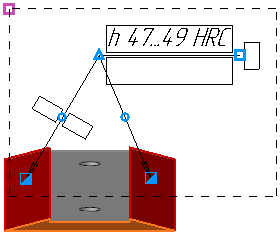
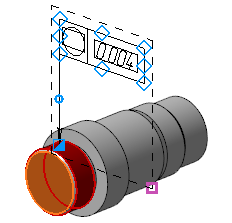
Defining points of the leader of designations:
a) of an arbitrary leader, b) of a shape tolerance
Adding branches
All branches of one designation can lie only in the plane of this designation.
To create an additional branch, do the following actions.
1.Click the point with the mouse (to indicate the tolerance form - click the point ).
2.Shift the cursor. In the graphic region, a phantom of a new branch will appear.
3.Specify the object to which the branch will point. While hovering the cursor over the object that the end point of a branch may belong to, this object is highlighted; the object icon is displayed near the cursor.
4.Confirm the choice of object with a mouse click. The point at which the object was specified coincides with the final point of branch.
Objects to which the starting points of branches of designation belong are regarded as objects to which this designation is related. Their list is displayed in the Objects field on the Parameter Panel.
Movement of defining points
To move a characteristic point, do the following actions.
1.Bring the cursor to a characteristic point.
2.When the cursor takes the shape of a quadrilateral arrow, click the left mouse button.
3.Without releasing the mouse button, keep moving the cursor. When the point reaches the required position, release the button.
Deletion of branches
A leader branch can be deleted with one of ways.
•Move the cursor to the point . When the cursor takes a form of a double-sided arrow, press the <Delete> key. The branch will be deleted.
Object to which a branch points is not removed from the Objects field during deletion of this branch.
•Delete from the Objects field the name of the object to which a branch is pointing. During deletion an object, also the branch indicating to this object is deleted.
Creation and deletion of kinks
To create a kink on the leader branch, click the point in the middle of the branch. The branch will be split into two equal parts. At the vertex of the kink, the point will appear, and at the midpoints of the resulting segments – points .
To displace the vertex of kink, move the point to the required position.
If it is required to delete a kink, bring the cursor to the point in the vertex of kink. When the cursor takes a form of a quadrilateral arrow, press the <Delete> key. The point will vanish, and the branch line will be rebuilt according to the position of the remaining characteristic points.
