|
Leader |
Scroll |
To create an arbitrary leader, use the Leader  command.

Step-by-step instructions
1.In the graphic area, specify the object to which the first branch of the leader line is pointing. As the object being designated, you can use any object of the model – a face, a plane, a vertex, an axis, an edge, a dimension, a designation, etc. The name of the selected object will appear in the Objects field on the Parameters Panel.
In the graphic area, a designation phantom is displayed. The final point of the first branch coincides with the point at which the object was specified.
2.Specify the starting point for the landing.
3.After indication of the point of origin for the landing, the Add Text subprocess will start. Enter the text of label and configure its parameters. That is done the same way as on creation of a leader in the graphic document. Details...
At the end of the Add Text subprocess, the system will return to creation of the leader. The generated label is displayed on the designation phantom and in the Text field on the Parameter Panel. To edit the label, click the name of the Textfield or the text box on the phantom.
|
If the object to set the leader on is a cosmetic thread (conical or straight pipe), then the caption on the leader landing is formed automatically. It contains the text of the specified thread designation. If necessary, you can edit the caption using the subprocess tools Text input. |

4.After indication of the designated object, the position of the plane of designation is determined automatically. By default, as the base plane one of the coordinate planes is used.
You can Change the plane of designation using the group's Location elements.
5.Configure the parameters of the leader linen using the elements of the Parameters group. The setup is done the same way as on creation of a leader line in the graphic document, with the only difference: the landing can’t be rotated using the <Ctrl> key. Details...
6.Create the necessary number of branches of the leader. Details...
You can add objects to the structure of designation, without creating additional branches. For this purpose, click in the Objects field, then specify the required objects in the graphic area. The specified objects will be highlighted, their names will appear in the Objects field.
7.If necessary, set the name and color of the leader using the elements of Properties section. More about managing object colors...
8.To complete creation of a leader, click Create Object  .
.
After you perform the described actions, a leader will appear in the graphic area, and the respective icon in the Design Tree.
9.To complete operation of the command, click Finish  .
.
|
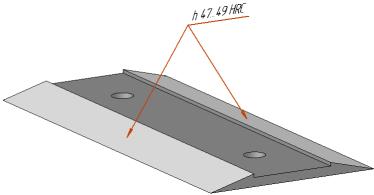
Example of placing a leader
See Also
