|
Setting up a custom text style |
Scroll |
To set up the text style, use the Dialog for creating/editing text style. In this dialog box you can create a new custom text style or edit an existing one.
You can set up the following parameters in the text style.
•Paragraph properties: 1st line indent, paragraph indentation, spacing between adjacent paragraphs, alignment, etc. (some paragraph properties are shown on the figure). You can set up the parameters in the text style create/edit dialog box.
•Font parameters: color, height and width of symbols, etc. You can set up these parameters in the Font Parameters, invoked by the Font... button.
•Tabulation parameters: tabulation indentation position, filling method, alignment of text relative to the tabulation position. You can set up these parameters in the Tabulation, invoked by the button of the same name.
•Advanced text options – number of rows, row pitch, symbol height and width. You can set up these parameters in the Advanced Text Style, invoked by the Next... button with the Advanced Text Style option enabled. For more details on advanced text style see below.
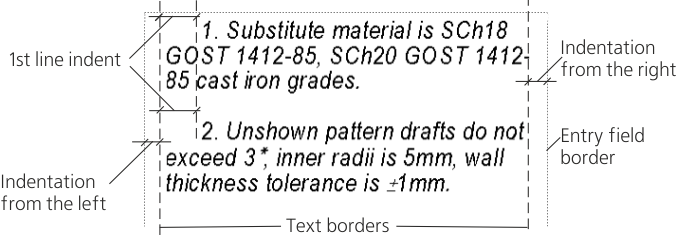
Paragraph Properties
The advanced text style is used for text in the table cells of the title block or in other fixed–size table cells. Using an advanced text style, you can set the relationship between the number of rows of texts (1, 2 or 3) and the parameters of the text: symbol height and width, row pitch.
You can set up the advanced text style parameters in the Advanced Text Style. To do that, in the dialog create/edit text style Enable the Advanced Text Style option and click the Next... button.
In the dialog box that appears, enable the options corresponding to the number of rows of the text, and configure the respective parameters. The parameters input fields are located under the corresponding options.
If the number of the rows in the text exceeds the number of the rows configured in the advanced text style, then the advanced style parameters are ignored.
The advanced text style is only used in tables, mainly to describe various cases of text entry into the columns of the document's title block, into table cells with fixed dimensions, etc. When using the text style containing advanced style settings outside of tables, the parameters of the advanced style are ignored.
For example, let’s say you create a text style called Normal with symbol height set to 3.5 mm, and then you set up the advanced style within the Normal style as follows: symbol height for single–row text is 10 mm, for double–row text is 7 mm, and for triple–row text is 5 mm. It means that the height of the symbols in a table cell with Normal style will be 10 mm if the cell contains one row, 7 mm if the cell contains two rows, 5 mm if the cell contains three rows, and 3.5 mm if the cell contains four rows. If you apply the Normal style to a text document, the height of the symbols will be 3.5 mm regardless of the number of the rows.
