|
Connecting a document to BOM item |
Scroll |
A BOM item can be assigned to KOMPAS–3D documents. Such link allows transferring data from the document to the corresponding BOM item.
The list of documents connected to the item is displayed in the ocuments section on the Parameter panel (see figure).
|
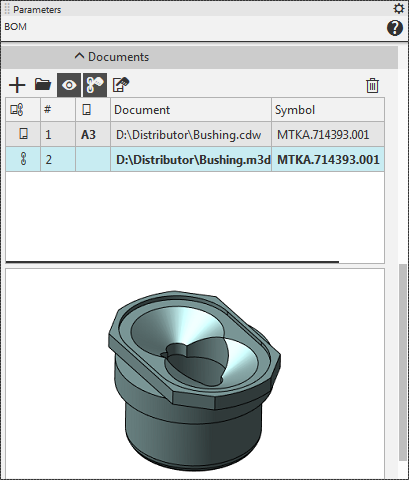
Documents connected to BOM Items
To connect a document to a BOM item, click the Add Document button  . Select the document file in the pop up dialog.
|
If the BOM item is a document, connect this document to the item (for example, assembly drawing, explanatory note, schema, etc.). If the BOM item is an assembly unit, attach the corresponding BOM to it. If the BOM item is a part, attach the working drawing of the part to it. |

If the attached document is the first one in the list (that is, the list was empty at the time when the Add document command was run), then a prompt to use data from the document title block appears on the screen.
In the case of a positive response, the values of the properties Name, Designation, Format, Weight, and Material are automatically transferred from the connected document to the corresponding fields of the BOM item.
|
Properties Material and Mass are transmitted to additional columns. In this case, if the mass units used in the BOM (see section Display of values) differ from the units used in the drawing or model, the mass value is recalculated. |

Above the list of documents attached to the item, you will find buttons used to perform various actions with documents. They are described in the table.
Buttons of the Documents section
Name |
Description |
|
|
Add document |
Allows you to add a document to the list of documents connected to the BOM item. After you click the button, a dialog for selecting a document to be connected appears on the screen. |
|
Edit in window |
Opens the document selected in the list in a separate tab in the KOMPAS-3D window or activates the document tab if it was already opened. You can make any changes with the document. |
|
Enable viewing of documents |
Controls the display of the thumbnail of the document selected in the list in the Enable viewing of documents section. |
|
and Get format from a document |
The button After you click the button, the content of the corresponding cell or cells of the item in the BOM table is changed and the document is marked in the Property/Format source column with an icon:
As long as the button remains pressed, the attachment between the BOM item and the document is maintained, i.e. changes of property values are transferred from the document to the item. You can disable the link by releasing the button. At the same time, the icon of the document in the Property/Format source column disappears. The current content of the BOM item cells does not change. If you edit texts in the item cells manually, the buttons are released automatically: the Get properties from document button By default, both the format and other properties are transferred from the first document attached to the BOM item. If necessary, change this setting after attaching all the documents. In some cases, when connecting a document to a BOM item, the transfer of its format may be included automatically. Details... |
|
|
|
|
|
|
|
Delete |
Allows you to remove the selected document from the list, i.e. detach it from the BOM item. The document file remains on the drive in the same folder. The current content of the BOM item cells does not change. |


|
The possibility of getting the properties from the linked documents is set up when the BOM style is configured. This setting is made for each in the Using a list Fill in the columns. If data transfer from the document is disabled, the prompt to use data from the title block upon document attachment is not displayed, and the button |
|
If the object transferred to the BOM from the connected document...only buttons Enable viewing of documents |
Procedure for automatic format transmission from an imported document
•If none of the BOMs connected to an object transfer their format to it, then the format transmission and tracking of its changes are unconditionally enabled for the connected document (i.e., the Get format from a document button  is pressed and remains pressed).
•If any of the documents connected to the BOM object transfer their format to it, then:
•In the case when the current format is extracted from the BOM (*.spw):
While connecting up to the new documents, settings remain unchanged.
•In the case when the current format is transferred from a drawing (*.cdw):
Format transfer from the connected document and tracking its changes are enabled if the connected document is a BOM.
•If the current format is transferred from another document:
Format transfer from the linked document and tracking its changes is enabled if the linked document is a drawing or a BOM.
