|
General Information about Setting up a Current Document |
Scroll |
Setting up parameters of a current document is performed in a dialog opened using the Parameters... command  .
.

You can change settings of an existing document on a special tab of the setup dialog. Depending on the document type, it has one of the following names:
•Current Drawing (see Figure below),
•Current Fragment,
•Current Assembly,
•Current detail,
•Current Text Document,
•Current BOM.
In the left part of the tab, there is a list of setup objects represented in the form of a "tree". The setup objects are grouped in sections. Once a certain item has been selected in the left part, the setup controls appear in the right part of the tab.
|
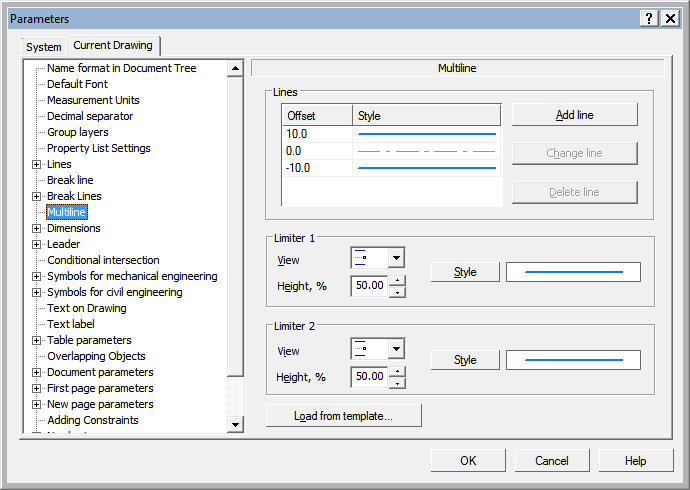
Dialog for setting the parameters of a multiline in the current drawing
Note the following conventions and simplifications used in this section:
•Hereinafter, the "dialog" will not imply a whole setup dialog but only a set of controls to set up a certain object.
•Reference to this set of controls will be described as follows: Options — Parameters... — Name of the setup dialog tab — Name of section (group of setup objects) — Name of subsection (subgroup of setup objects). For example, if the text says: "...the setup is executed in the Length Measurement Units dialog opened using the Settings — Parameters — Current Drawing — Measurement Units... command", this means that to access the measurement unit settings, you should do the following sequence of actions.
1.In the Main menu, select the Settings item.
2.In the list of commands of the Settings menu that appears, select the Parameters... command.
3.In the dialog that appears, activate the Current Drawing tab.
4.Select the Measurement Units subsection.
In the right part of the tab, controls under the general heading Length Units will appear to select the length measurement unit in the drawing.
|
If the parameters of all documents and their objects should differ from the current default parameters, then instead of setting up each document separately, you can make the required settings apply to all new documents. To do this, create a new document of the required type, perform all the required settings in it and save it as a template. You can select a template manually when creating documents or configure the system so that the template is selected automatically. |

