|
Notes on editing a brace |
Scroll |
It is possible to edit a brace by changing the position of its defining points. The quantity of defining points of a brace depends on the selected text placement method.
You can select a brace with a mouse and change it by setting new values of parameters on the Parameter Panel or by moving the defining points. Moving the defining points is performed for a brace in the same way as for other objects of the graphic document. Details...
Movement of defining points of a brace has the following features.
•The point in the center of a bracket allows to replace the direction of a bracket.
|
|
a) |
b) |
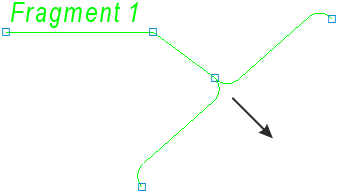
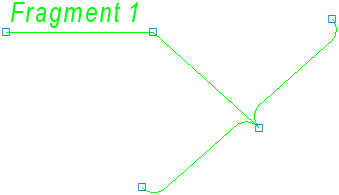
Change of direction of a brace:
the initial state and the result of editing
•When moving one of the snap points, the length of a bracket and its rotation around another snap point change. At the same time, the text close to the bracket rotates together with it, and the text located on the landing does not change its position. When moving snap points, keep in mind that they cannot be pulled together closer than the minimal length of a brace.
•When moving snap points and/or points in the center of a bracket, the horizontal or vertical orientation of the bracket set using the Orientation group of buttons retains.
•Point 4 allows to change the text placement method.
|
|
a) |
b) |
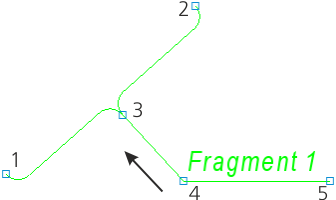
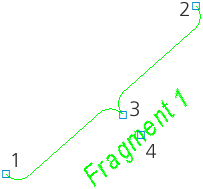
Conversion of text on the landing into a caption:
the initial state and the result of editing
It is possible to start the process of editing a brace and to make changes to its configuration in this process. Defining points of a brace in the process of editing differ from the points which are displayed on simple selection of a bracket.
|
|
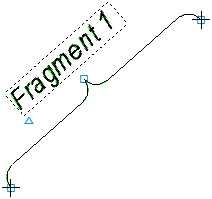

Display of the characteristic points of a brace in the process of editing
Movement of defining points of a brace in the process of editing is performed in the same as in simple selection of a bracket.
If the label is placed on the landing, it is possible to create a bend on a leader by moving the point  to the middle of the leader. After that, the leader will be split into two segments. At the vertex of the bend, the
  point will appear, and in the middles of the obtained segments - the points.
|
|
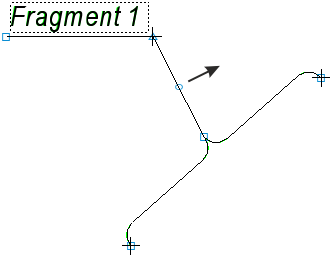
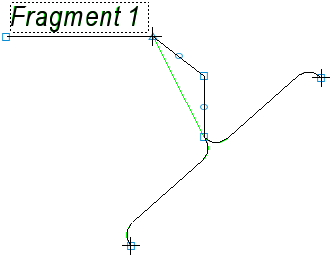
Creation of a bend on the leader:
the initial state and the result of editing
If you need to delete a bend on the leader, select the point at the vertex of the bend and press the <Delete> key. The vertex will disappear, and leader will be rebuilt according to the position of the remaining characteristic points.
