|
Structure description |
Scroll |
After you confirm creation of a table attribute (through closing the attribute creation dialog by pressing the OK button), the table attribute structure description dialog appears on the screen, see figure.
A table at the bottom of the dialog is used to create structure description. Each table line tells how a column is generated in the table attribute. Line in which the cursor is located is considered to be active.
Table attribute structure description dialog controls are described in table Table attribute structure description dialog.
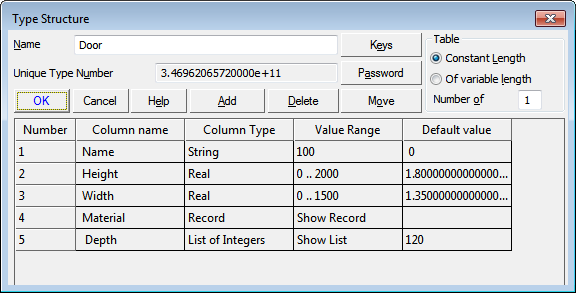
Table attribute structure description dialog
Table attribute structure description dialog
Name |
Description |
|
Name |
Field where you can edit the name of attribute type being created. |
|
Unique Type Number |
Reference field that contains an unique number automatically assigned by the system to the attribute type being created. Newly created attribute type has no number. You can see the number when viewing the attribute for the next time or when editing the created attribute. |
|
Table |
Use toggle switches to select table attribute type (constant size or variable size table). For a constant size table enter corresponding value into Number of rows field. |
|
Number |
Automatically assigned column number. |
|
Column name |
Field for entering the name (header) of attribute column. |
|
Column Type |
Field for choosing column data type. To open data type change dialog, left-click this field, then press Change type button which appears. Column data type selection dialog is described in the next section. |
|
Value Range |
Field for setting range of values allowed for data in the column. To change the value range, left-click this field, then press Change type button which appears. For real and integer values you must specify minimal and maximal values, for text strings – maximal string length in characters. If column data type is record, then clicking a button in Value Range field opens record structure creation dialog. Record structure creation is explained in detail at Record structure creation. |
|
|
Maximum integer number range: from -2147483647 to 2147483647. Maximum real number range: from -1.7e+307 to 1.7e+307. Maximum allowed string length: 4000 characters. |
|
Default value |
Field for entering default value for attribute column. |
|
Add |
This button allows to add a new column to an attribute. When you press the button, a new line appears in the attribute structure description dialog under the line which was active at the moment. |
|
Delete |
This button allows to delete a column from an attribute. When you press this button, the line which was active at the moment in attribute structure description dialog is removed. |
|
Move |
This button lets you move a column. After pressing the button, specify new location for the active row. |
|
Password |
This button lets you set a password for access to attribute structure (for example, to protect it from unauthorized structure alteration). |
|
Keys |
This button lets you set attribute keys. The keys are used to order objects by their attributes. |

When you complete structure description, press OK button in the dialog. An icon of the created table attribute and its name are shown in attribute type handling dialog.
Data type selection
The column data type selection dialog is shown in the figure below.
Controls in this dialog are listed in table Data type selection dialog.

Data type selection dialog
The element |
Description |
|
Integer, Real, , String, Record |
Data type options in attribute column. The data type of record is described in detail in Record structure creation. |
|
Field Key |
Field for entering key value for this column. Only integer values up to 9999 are allowed. |
|
Filling from List |
This option allows to generate a list of values for the cells for the column being configured. Later, when an attribute of this type will be assigned to an object, data entry into this column will be possible only by selecting values from the list (see more details on list generation in the next section). This option is not available when record data type is selected. |
|
Corresponds in C Language to |
Reference on C language data type which corresponds to data type selected in column (this may be useful when developing KOMPAS application libraries). |
Creating value lists to populate cells
If a column is configured to populate cells with list values, the list itself must be created.
To do this, left-click the Value Range field, then press the Show List button that appears, see the illustration.
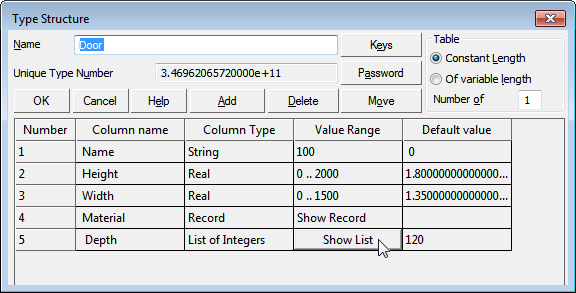
Invoking the Values Entry dialog
The list values entry dialog appears, see the following figure.
Enter the value to be added into the list in the bottom field of the dialog and press Add button. The value will be added to the list, moved to the top field. The bottom field is cleared. Repeat the actions above to populate the list.
To remove a value, select it and press Delete button.
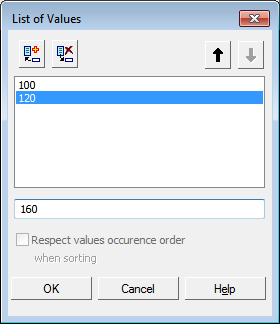
List values entry dialog
A record is a row in another table to which this cell refers.
To create this table, left-click the Value Range field, then press the Show record button that appears, see figure.
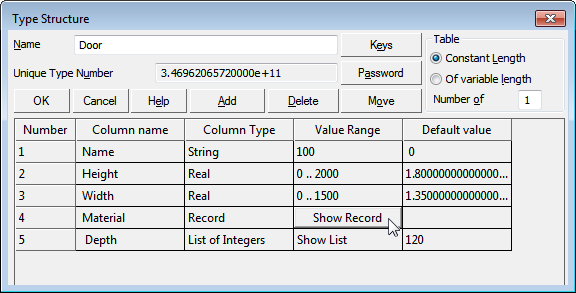
Invoking the Record Structure Creation dialog
The record structure creation dialog appears on the screen, see the figure below.
Creation of record structure is virtually identical to creation of table attribute structure. The only difference is impossibility to create a record: that is, record recursion (nesting) depth can not be greater than one.

Record structure creation dialog
