|
Reading coordinates from a file |
Scroll |
This method lets you specify instance positions with points whose coordinates are obtained from previously created file – a data file.
Reading coordinates from a file is performed when the File  button in the Data Source group of the Array Parameters section is activated. This button is activated by default.
To select the required file, click on the name of the Source file field. The "Open File" dialog box will appear on the screen.
Select the required file in this dialog and click Open. The filename is displayed in the Source File field.
|
When source of the coordinates is the table of modifiable variables, then after changing source type (by pressing File button), file opening dialog displays automatically. |

After you choose the file, a phantom of an array appears in the graphic region. Base point of the base instance is considered to be the base point of the object being copied (for the base point of the object being copied, see section Base point of a 3D object). Anchor points of another array instances are combined with points whose coordinates are obtained from the data file. These points are highlighted with color.
The created array retains a link with selected data file. This link is generally similar to the association of the Point group with the Source File. The difference is in link management. You cannot create a link when generating an array (Explode option is not available on the Parameter Panel).
Viewing coordinates obtained from a file
You can view coordinates of points read from a file using the tables of modifiable variables.
To open the table, click the field name Table of modifiable variables. A dialog of the same name as the table appears on the screen (see figure).
The table of modifiable variables displays columns with point coordinates obtained from the file. These coordinate values cannot be edited.
Coordinates are displayed in the coordinate system of selected type. More about choosing point coordinate type...
First table row contains no instance number. It displays coordinates of base point of the object being copied.
All the other rows (with instance numbers) contain coordinates of points which specify instance positions.
The display of coordinates in the table is managed by Set base point coordinates  button, located on the dialog toolbar. When the button is activated, the coordinates are displayed, and when it is released, they are not.
|
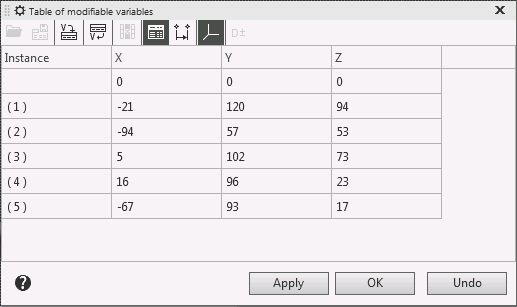
Viewing coordinates obtained from a file
Editing coordinates obtained from a file
You can edit point coordinates obtained from a file if necessary. To do this, after selecting the file, click the Variable Table  button in the Data Source group.
A table of modifiable variables is created in the model, containing data from the file. Dialog window with this table appears on the screen. Cells with coordinates (except coordinates of the base point of the object being copied) are marked white. This means that these cell values can be edited.
Make necessary changes to coordinate values. These changes will be stored in the model. The array will be rebuilt according to changes made.
Note that path to selected file is stored in the model. You may undo the changes made to the table by pressing File in Data Source group. The array will be rebuilt according to coordinates from the file.
|
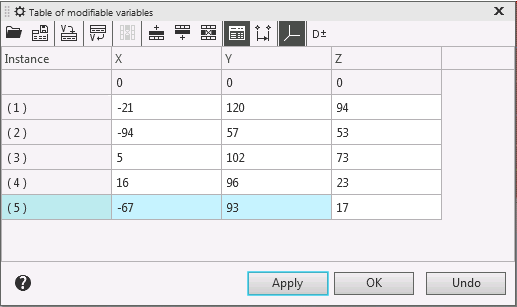
Editing coordinates obtained from a file
